
Does your Oppo A54 mobile phone drain its battery quickly or do you have any other Android mobile phone that drains its battery quickly and runs slowly or hangs? Then there are apps running behind them that you do not close. Background apps use battery processing power which makes your phone slow over time. In this article, we will tell you in full how you can stop background apps and improve mobile speed and battery life. We will tell you the whole method in this article. we will show you step-by-step methods to stop background apps on your OPPO A54, improving speed and battery life.
Why Background Apps Affect Your OPPO A54
Many OPPO A54 users don’t realize that even when an app is closed, it may continue running in the background. Here’s why that’s a problem:
- Battery Drain: Apps running in the background constantly use energy, reducing battery life.
- Slow Performance: Your phone’s memory and processor get busy handling these apps, which slows down other tasks.
- Missed Updates & Notifications: Sometimes background apps conflict with notifications and cause delays.
- Overheating: Continuous app activity generates extra heat, which is harmful in the long run.
Stopping background apps can significantly improve your phone’s performance and extend battery life.
Step-by-Step Guide to Stop Background Apps on OPPO A54
Now we understand how we can stop background Apps, how we can improve the speed, battery and slow running of our mobile phone, I have explained this whole method step by step, follow it and solve your problem.
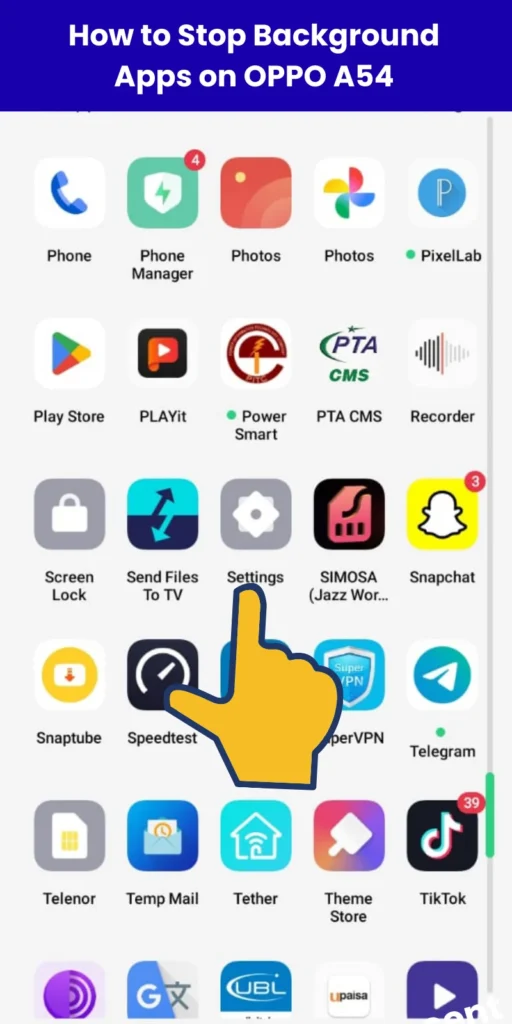
1. Open Settings
On your OPPO A54, find and tap the Settings app.
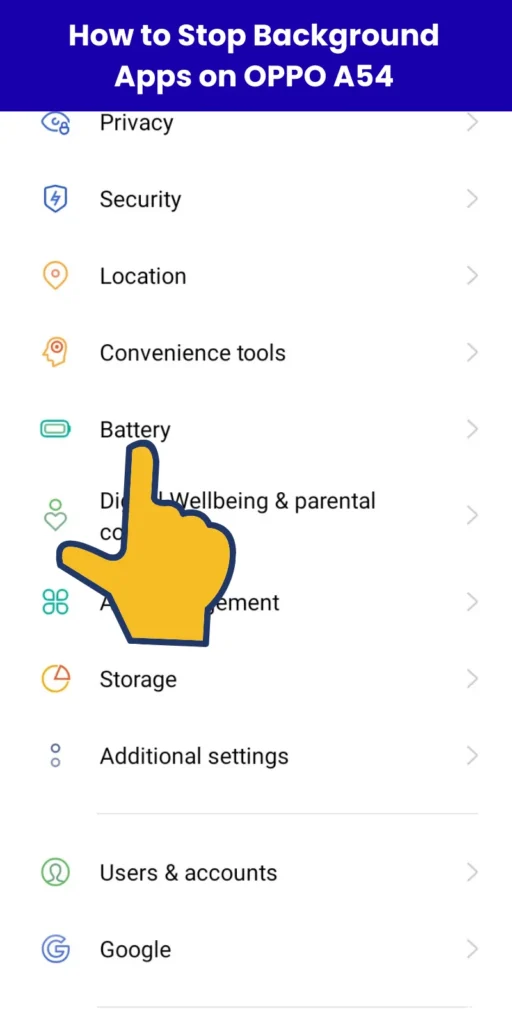
2. Go to Battery
Scroll down in Settings and tap on Battery.
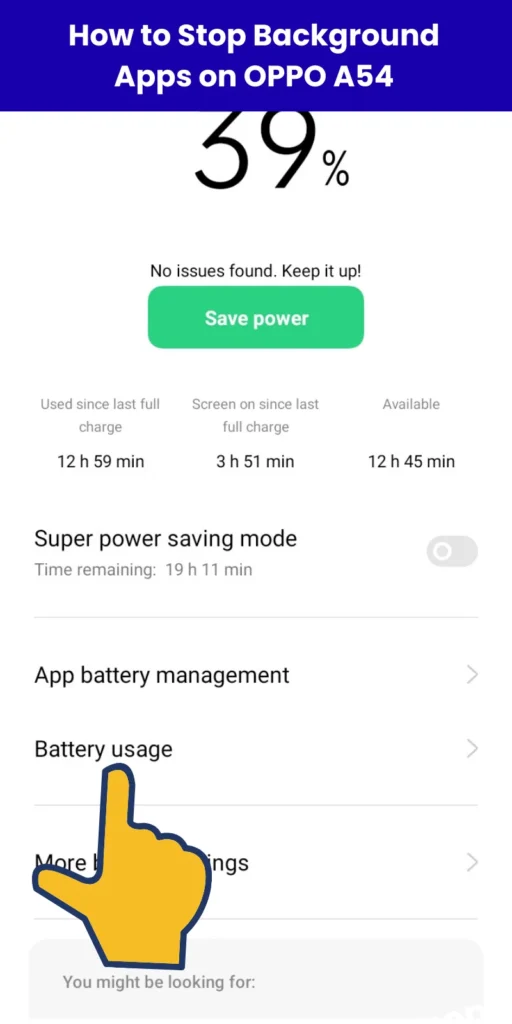
3. Manage Background Apps
Tap on Battery Usage to see which apps use the most battery.
Select the app you want to control.
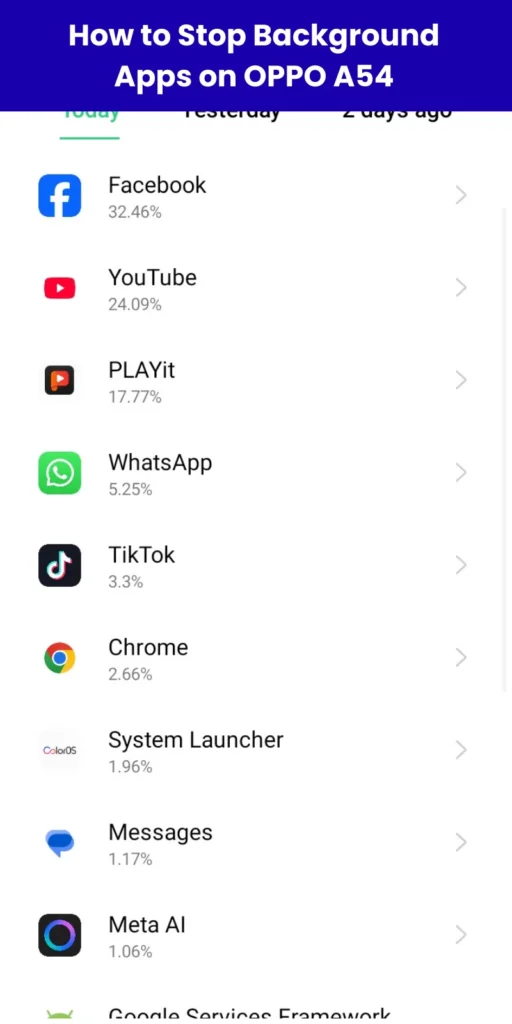
Choose Restrict Background Activity or Optimize Battery Usage (depending on your ColorOS version).
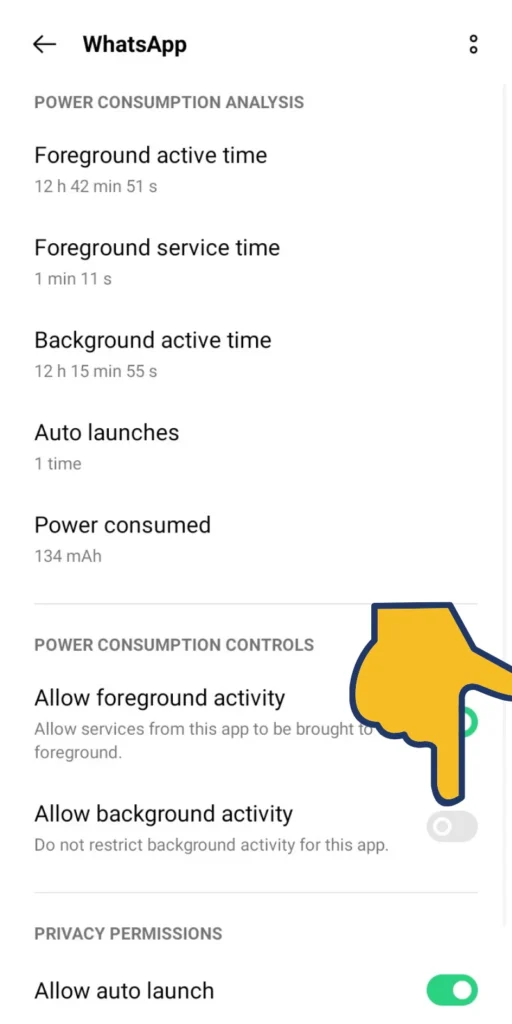
This prevents the app from running unnecessarily when you’re not using it.
4. Recent Apps → Clear All
Tap the Recent Apps button (square or swipe-up gesture).
Click Clear All to close apps that are not currently in use.
Read More: How to Enable Split Screen on OPPO A54
5. Stop Auto-Start Apps
You can also manage apps directly:
- Go to Settings → App Management → App List.
- Tap on the app you want to control.
- Turn off Allow Background Activity.
This ensures that only the apps you need are active in the background.
6. Enable Power Saving Mode
OPPO A54 comes with a Power Saving Mode:
- Go to Settings → Battery & Performance → Power Saving Mode.
- Turn it on to automatically limit background activity.
This mode helps save battery and reduces unnecessary app usage.
Extra Tips to Improve Performance
Here are some additional tips to keep your OPPO A54 running smoothly:
- Disable Auto-Start Apps: Some apps start automatically when you turn on your phone. Disable unnecessary auto-start apps to save battery.
- Manage Smart Sidebar: Remove apps you rarely use from the Smart Sidebar to reduce background activity.
- Restart Your Phone Regularly: Restarting helps clear temporary data and free memory.
- Keep Your System Updated: Always install the latest system updates for better performance and bug fixes.
FAQs
Q1: Will I miss notifications if I stop background apps?
A: Some notifications might be delayed if you restrict certain apps. Always keep essential apps like messaging or email active in the background.
Q2: Can restricting all background apps slow my phone?
A: No, it improves performance. However, avoid restricting critical system apps to prevent glitches.
Q3: How often should I check background apps?
A: Once a month is enough, or whenever you notice battery drain or slow performance.
Read More:
- How to Enable App Lock on OPPO A54 (Without Third-Party Apps)
- How to Change Keyboard Language on OPPO A54
- How to Change Ringtone & Notification Sounds on OPPO A54
- How to Change Navigation Buttons to Gesture Mode on OPPO A54
Conclusion
In this article, we have given you a step-by-step guide in complete detail on how you can stop your Oppo A54 mobile from running background apps and how you can stop your mobile phone from running slow and consuming battery and overheating. We have explained all this method step by step above and we have also shown you how to do it on your mobile phone. We have explained all this in detail.

My name is Mujahid Shah. I provide helpful information about mobile phones, laptops, and general technology topics. I write simple and easy guides to help people solve common problems and understand tech in a better way.