
How to Remove Virus from a Laptop Without Antivirus: A virus-infected laptop can become slow, unresponsive, or show unusual behavior like pop-up ads, unknown programs, or sudden crashes. Many people think antivirus software is the only solution, but the truth is, you can remove many types of viruses from a laptop without installing any antivirus software. Windows already provides several built-in tools that are powerful enough to clean your system if used correctly.
In this guide, you’ll learn how to remove a virus from a laptop without an antivirus, using safe and practical methods that work on Windows 10 and Windows 11.
How to Know If Your Laptop Has a Virus
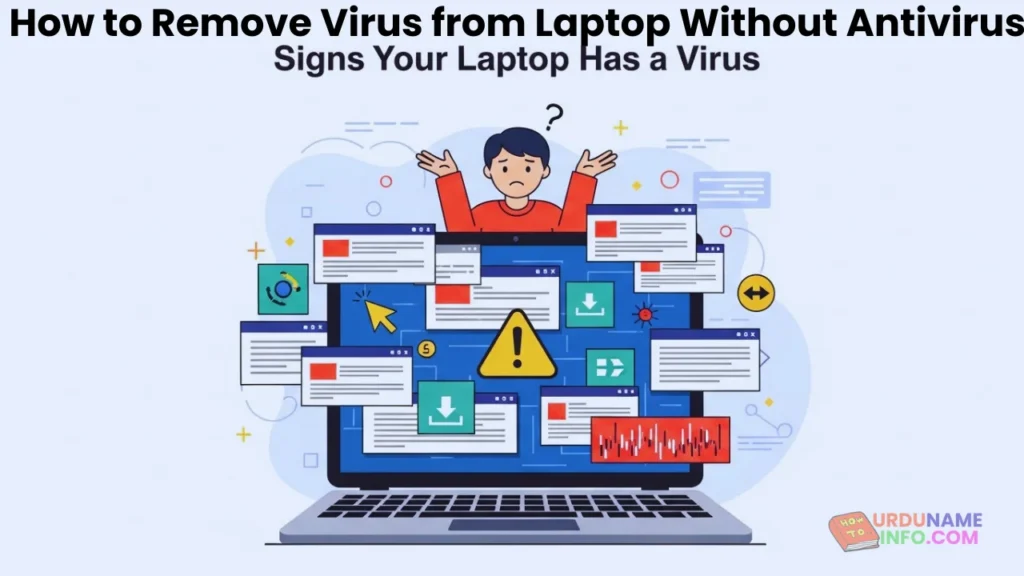
If your laptop suddenly becomes slow, apps start opening on their own, the browser redirects you to unknown websites, or the storage fills up without reason, these are common signs of malware or virus activity. Ignoring these signs can lead to data loss or privacy issues, so it’s important to act quickly.
Read More: How to Clear Cache in Windows 10 & 11 (Step-by-Step Guide)
Method 1: Restart Laptop in Safe Mode
Safe Mode starts Windows with only essential system files. Most viruses do not run in Safe Mode, which makes them easier to remove.
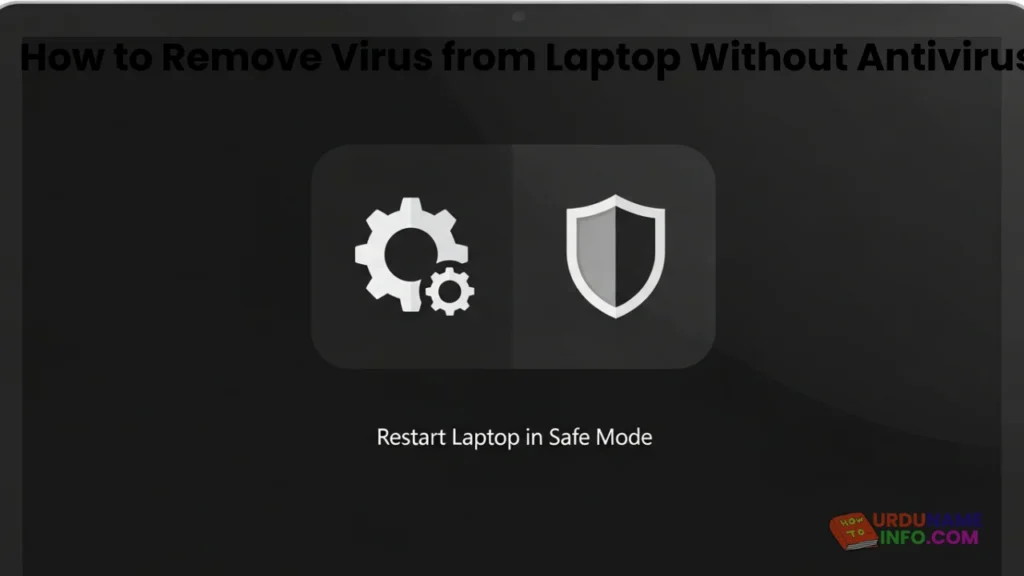
Restart your laptop and press Shift + Restart. From the options menu, choose Troubleshoot, then Advanced options, followed by Startup Settings. After restarting, select Safe Mode. Once your laptop boots into Safe Mode, unwanted programs usually stop running automatically.
Method 2: Remove Suspicious Programs Manually
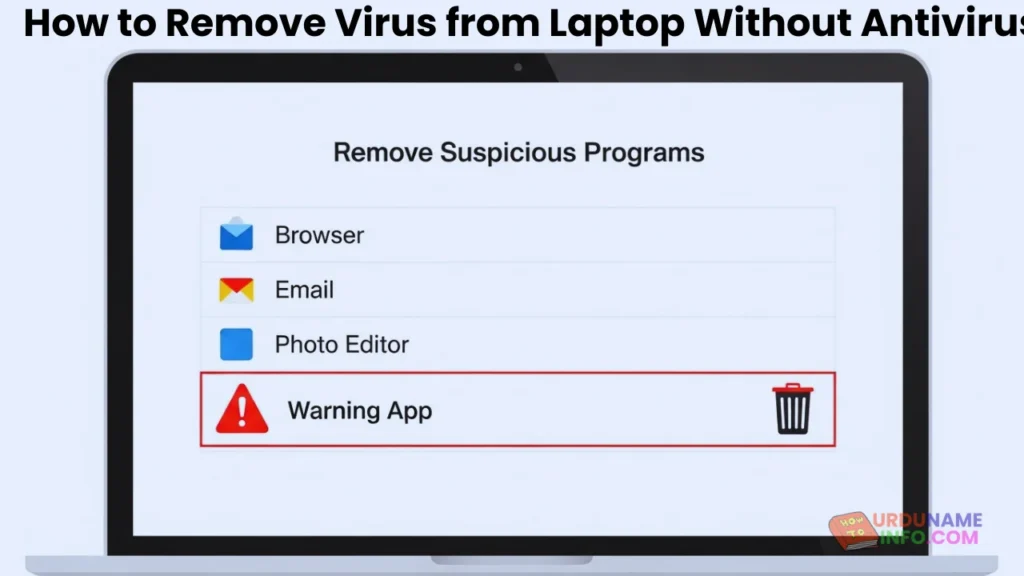
While in Safe Mode, open Control Panel and go to Programs and Features. Carefully check the list of installed programs. If you see any software you don’t remember installing, or names that look suspicious, uninstall them immediately. Many viruses disguise themselves as normal apps, so look closely at install dates and unfamiliar names.
After uninstalling, restart your laptop normally.
Method 3: Delete Temporary Files
Viruses often hide inside temporary files. Clearing them helps remove leftover malicious data.
Press Windows + R, type temp, and press Enter. Delete all files inside the folder. Do the same by typing %temp% and then prefetch in the Run box. Don’t worry if some files can’t be deleted — that’s normal.
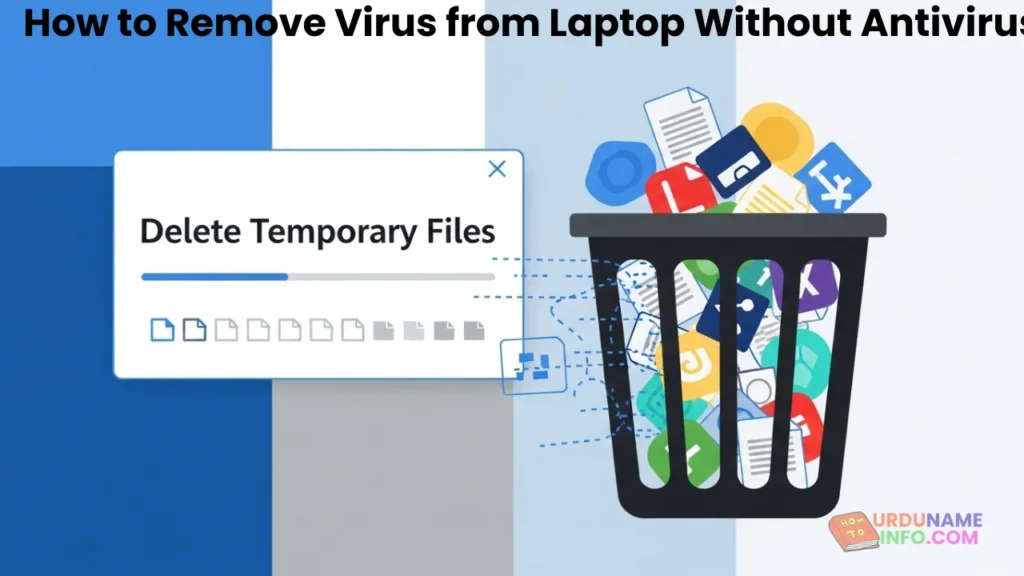
This step alone can remove many basic malware traces.
Method 4: Use Windows Security (Built-in Tool)
Even though this guide avoids third-party antivirus software, Windows Security (formerly Windows Defender) is already built into your system and does not require installation.
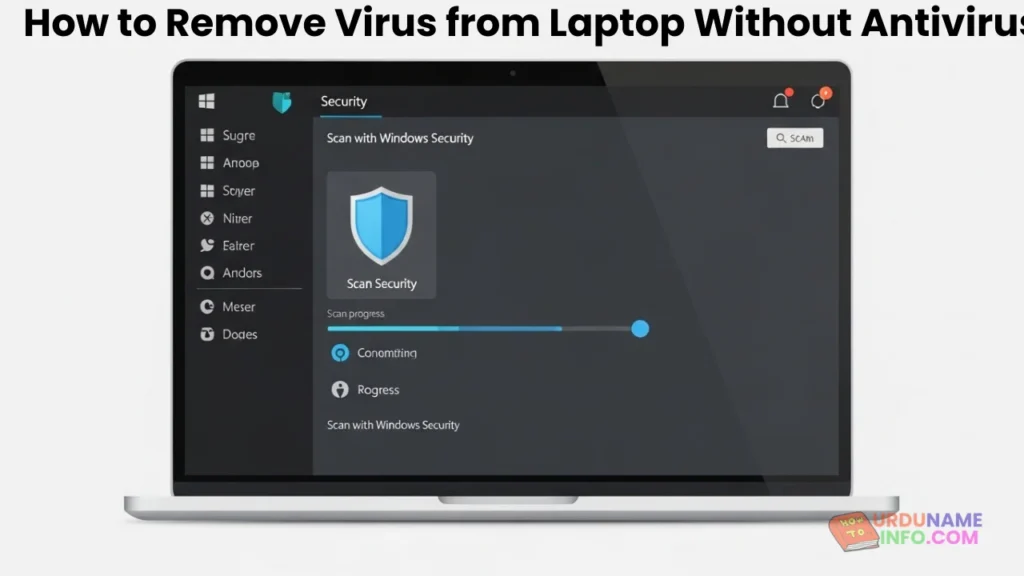
Open Settings, go to Privacy & Security, then click Windows Security. Choose Virus & threat protection and run a Quick Scan or Full Scan. This helps detect and remove hidden threats using Microsoft’s official security engine.
Method 5: Check Startup Programs
Some viruses automatically start when Windows boots.
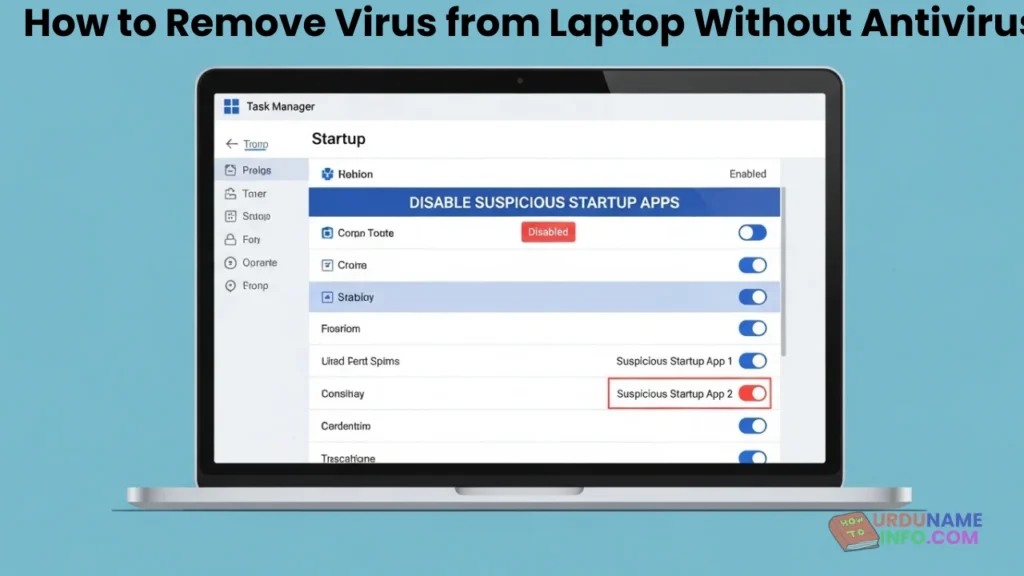
Press Ctrl + Shift + Esc to open Task Manager, then click the Startup tab. Disable any program that looks suspicious or unnecessary. This prevents malware from reactivating itself after a restart.
Method 6: Reset Browser Settings
If your browser is affected by redirects or pop-ups, resetting it can remove browser-based malware.
Open your browser settings and choose Reset settings or Restore settings to default. This removes malicious extensions and restores normal behavior without deleting your bookmarks.
Important Safety Tips After Virus Removal
Once the virus is removed, update Windows immediately. Avoid downloading cracked software, unknown email attachments, or fake browser extensions. Always install apps from official sources only.
Frequently Asked Questions
Can I really remove a virus without antivirus software?
Yes, many common viruses can be removed using Safe Mode, Windows Security, and manual cleanup methods.
Is Windows Security enough?
For basic protection and virus removal, Windows Security is reliable and officially recommended by Microsoft.
Will resetting Windows remove all viruses?
Yes, but it should be your last option. Try manual methods first to avoid data loss.
Conclusion
Removing a virus from your laptop without an antivirus is possible if you follow the correct steps carefully. Using Safe Mode, deleting temporary files, uninstalling suspicious programs, and running Windows Security scans can clean your system effectively. These methods are safe, free, and work well on both Windows 10 and Windows 11.

My name is Mujahid Shah. I provide helpful information about mobile phones, laptops, and general technology topics. I write simple and easy guides to help people solve common problems and understand tech in a better way.