
Do you want to use Enable App Lock to protect your apps, such as WhatsApp, Gallery, Facebook, and others, on your Oppo A54 phone from others? Then you have come to the right article. You have this feature with the built-in App Lock in your Oppo A4. You don’t need to install any external apps; everything is available inside ColorOS. Read this article completely. In full detail, I will tell you how you guys can enable the Enable App Lock feature in Oppo A54 mobile phone. Must read the article till the end.
Built-in App Lock Feature in OPPO A54
The OPPO A54, powered by ColorOS, comes equipped with an advanced system-level privacy feature known as App Lock. This powerful tool allows you to safeguard your most personal apps, including chat applications and photo or video galleries, ensuring that your private data stays truly private. With App Lock, you can secure your apps effortlessly using a PIN, pattern, password, or even your fingerprint, giving you full control over who can access your sensitive information. This feature not only enhances the security of your device but also provides peace of mind, knowing that your digital world is protected at all times.
How to Enable App Lock on OPPO A54 (Step-by-Step)
If you are running an Oppo A54 mobile, it includes a system-level privacy feature through which you can enable app locks. Below I have provided a step-by-step guide on how you can enable app lock.
Step 1: Open Settings
Go to the Settings app on your phone.
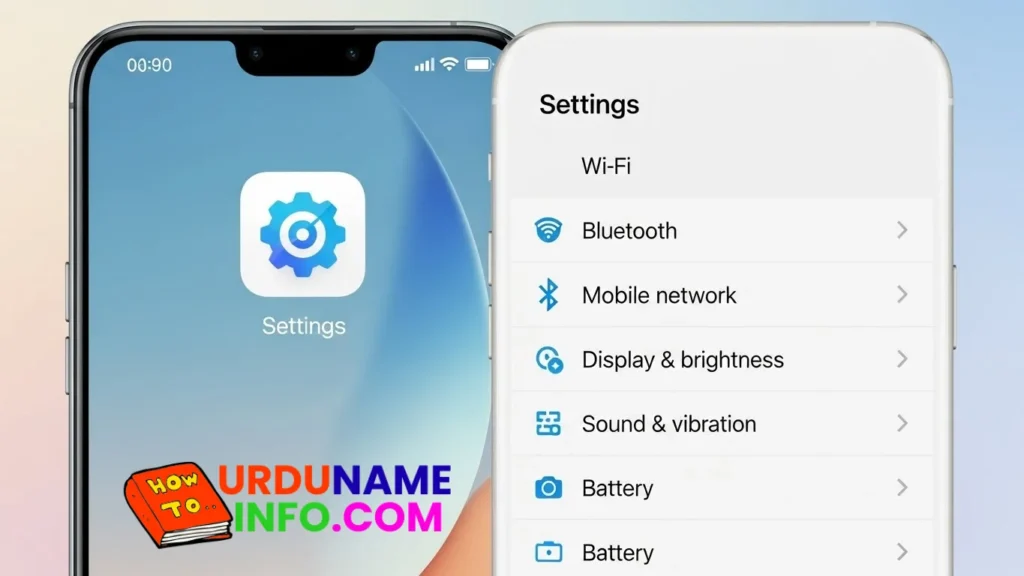
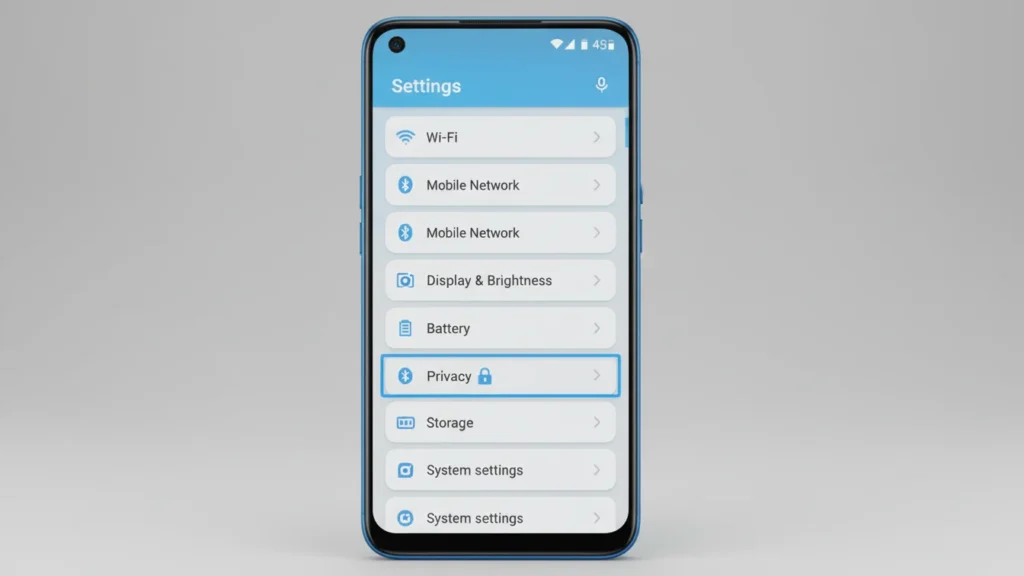
Step 2: Open Privacy Settings
Scroll down and tap Privacy.
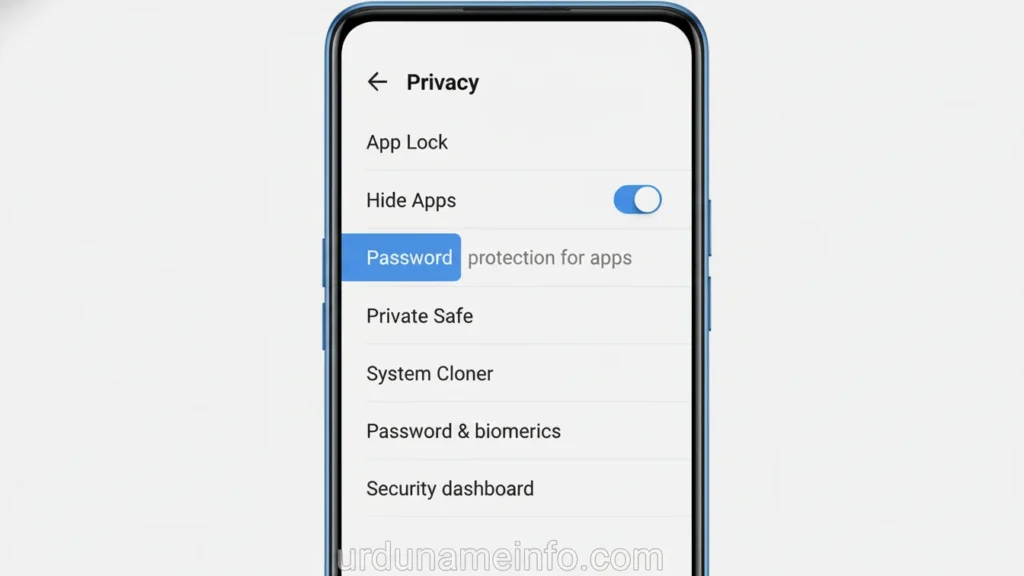
Step 3: Select App Lock
Inside privacy settings, find and open App Lock.
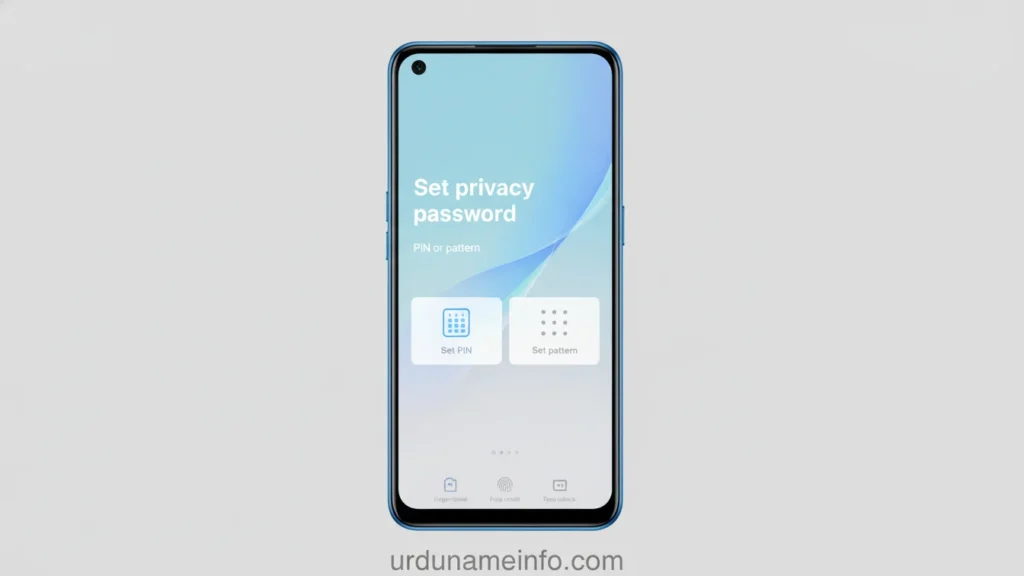
Step 4: Set Up Password
If you haven’t already set a privacy password, create one.
You can choose:
- Screen lock password
- Fingerprint unlock (optional)
Step 5: Choose the Apps to Lock
You will see a list of installed apps.
Turn ON the toggle next to any app you want to secure.
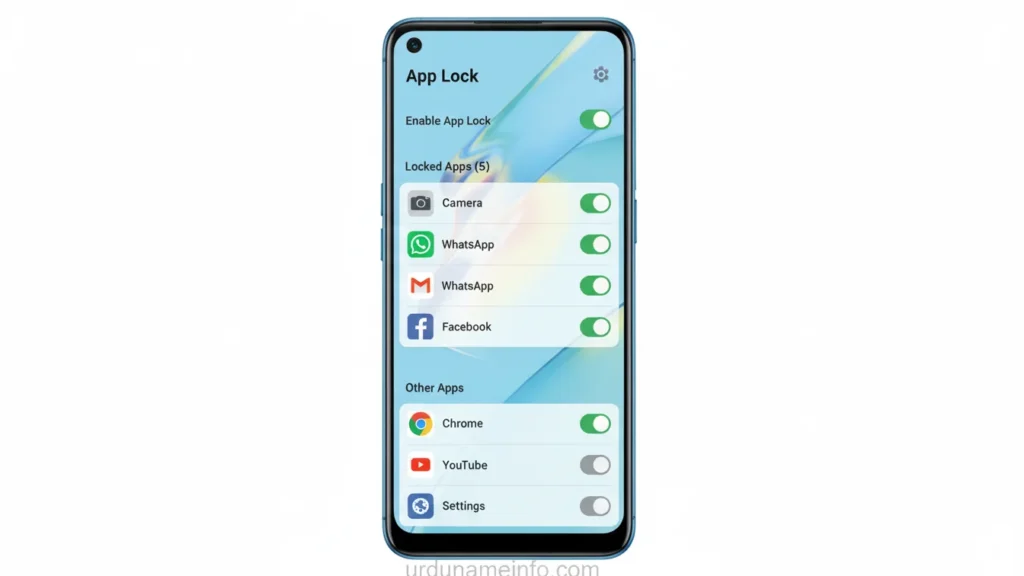
That’s it the app is now locked.
So here is the complete method by which you can enable app lock and lock any apps. I have made a step-by-step guide.
Optional: How to Hide Apps on OPPO A54
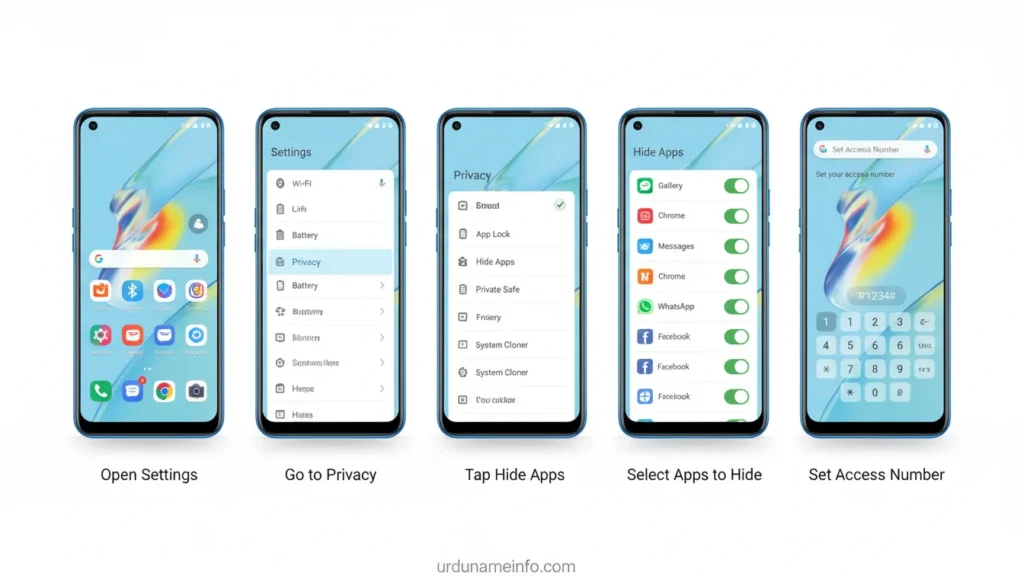
If you want more privacy, OPPO also gives a Hide Apps feature.
With this, the selected apps disappear from the home screen.
How to Enable Hide Apps:
- Open Settings
- Go to Privacy
- Tap Hide Apps
- Select the apps you want to hide
- Set an Access Number to open hidden apps
How to Remove or Change App Lock
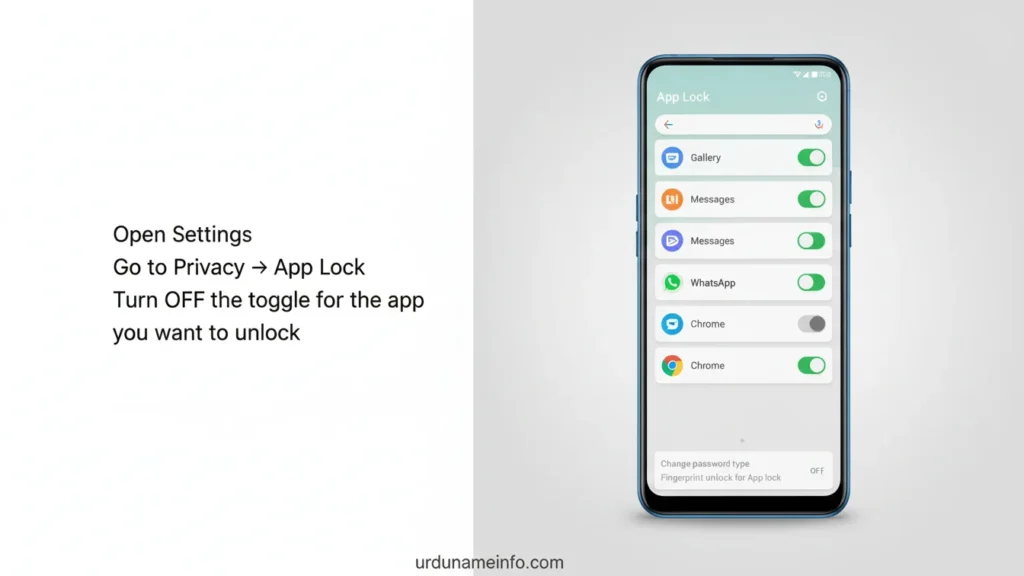
If you want to unlock or remove the lock:
- Open Settings
- Go to Privacy → App Lock
- Turn OFF the toggle for the app you want to unlock
To change password:
Go to Settings → Privacy → App Lock → Reset Password.
Common Issues & Solutions
App not showing in App Lock?
- Restart your phone
- Update system software
Fingerprint not working?
- Re-add your fingerprint
- Clean the sensor area
Conclusion
In this article, I have told you how you can enable app lock your app lab, how you can hide your apps from other people, and I have done all this method without using any third party apps, I hope you liked this article, we have told you in simple steps and we have shown you all this by doing it on our mobile phone.
Related Blog Post
- How to Enable Split Screen on OPPO A54
- How to Change Keyboard Language on OPPO A54
- How to Change Ringtone & Notification Sounds on OPPO A54
- How to Change Navigation Buttons to Gesture Mode on OPPO A54

My name is Mujahid Shah. I provide helpful information about mobile phones, laptops, and general technology topics. I write simple and easy guides to help people solve common problems and understand tech in a better way.