
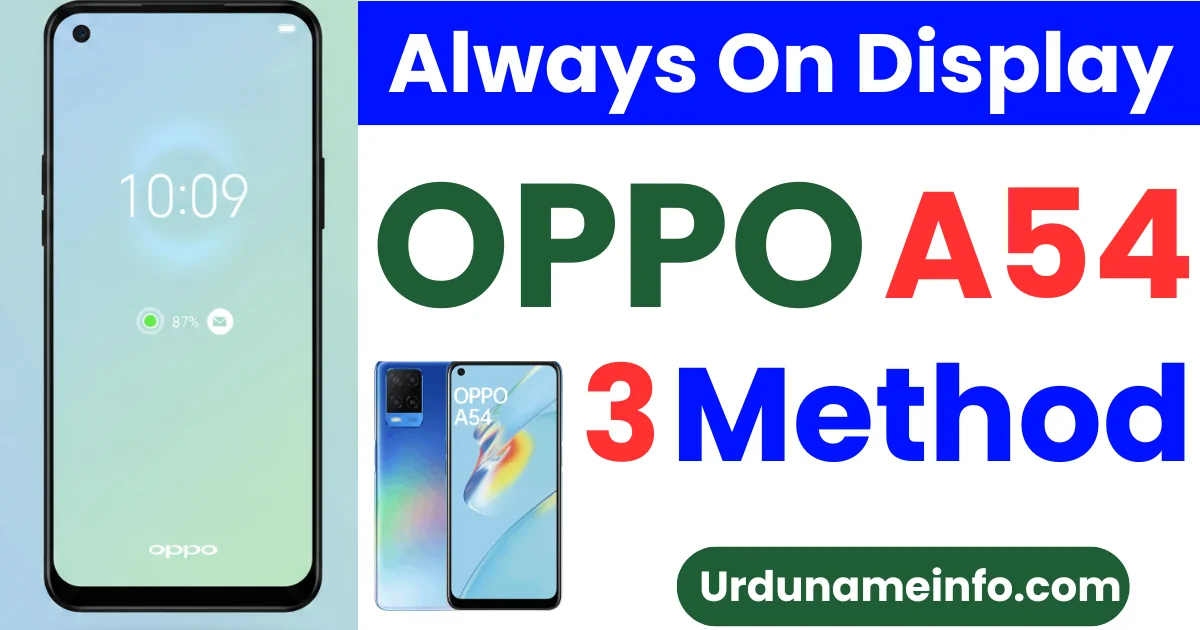
If you have a mobile Oppo A54 and you want your mobile phone’s Always On Display (AOD) to remain always on in the future. You are not alone in this problem. Many Oppo users are looking for a way to enable this feature because it looks innovative and allows you to quickly view notifications, battery, and date without unlocking the phone. In this article, I will tell you in full detail how you can turn your mobile phone’s display on and off forever.
Does OPPO A54 Support Always On Display?
Before you start all this, you need to understand a few things.
- OPPO A54 uses an LCD display, not AMOLED.
- True Always On Display works only on AMOLED screens.
- LCD screens cannot turn off pixels individually like AMOLED.
Therefore, OPPO A54 does NOT officially support real Always On Display.
Don’t get tense now!
You can still enable features like ‘Always On Display’ (AOD) using built-in settings or third-party apps. These alternatives look just like the original AOD.”
Read More: How to Enable Developer Options in OPPO A54
Method 1: Check Built-in Settings (ColorOS AOD Option)
Oppo releases different features in different regions. Some of the Oppo series have a screen-off clock feature that works like an Always-On Display. This must meet your needs.
Follow these few steps to check if Oppo 54 has these features or not.
Open Settings
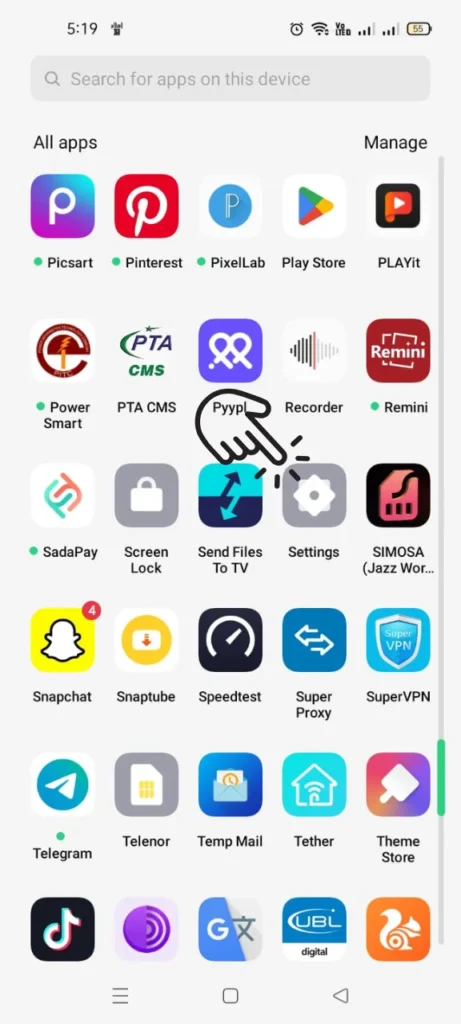
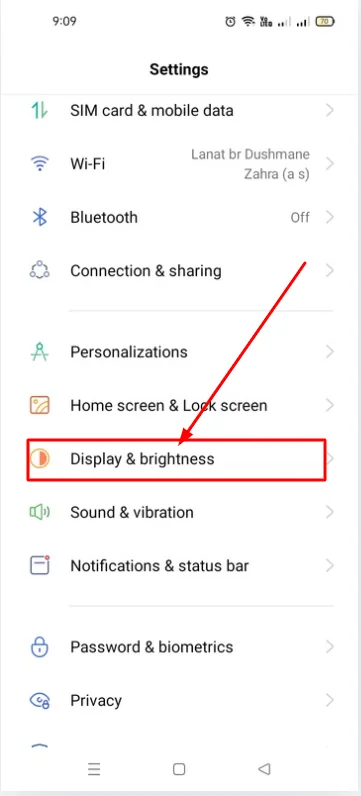
Scroll down and tap Personalization or Display & Brightness
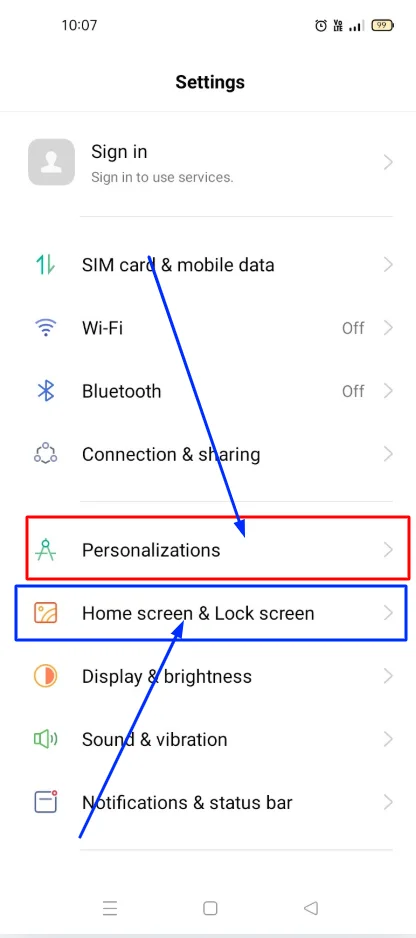
Look for Always-On Display or Screen-off Clock
If available → Turn it ON
Select your favorite:
- Digital clock
- Analog clock
- Text clock
- Pattern clock
If you don’t see the AOD option, your region or firmware does not support it.
Method 2: Enable “Screen-off Clock” (If Available)
If the Always On Display setting is not available on your Oppo mobile, Oppo sometimes includes a Screen Off Clock feature.
Open Settings
Go to Display
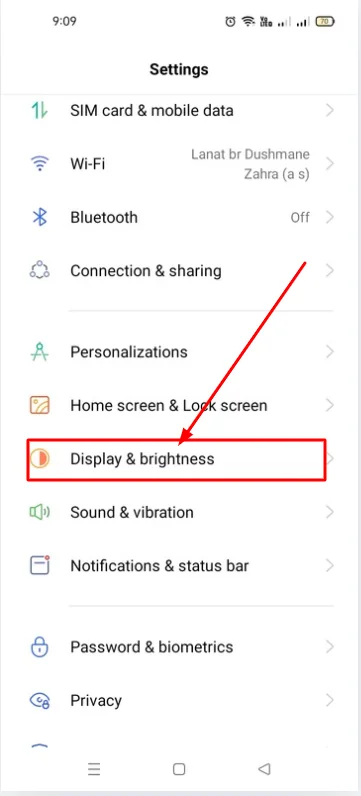
Tap Screen-off Clock
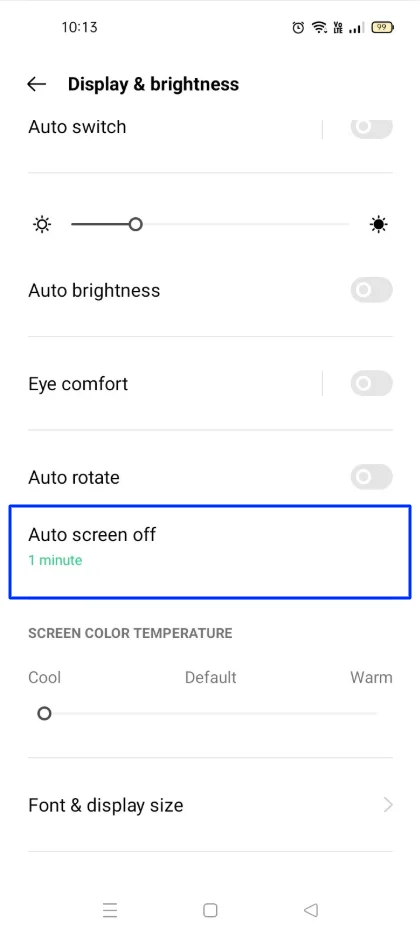
Toggle Enable Screen-off Clock
Customize:
- Time style
- Display duration
- Font and colors
This is the closest built-in alternative to Always On Display.
Read More: How to Improve Battery Life on OPPO A54
Method 3: Use Third-Party Apps (Best For OPPO A54)
Oppo A94 mobile does not have the location always on display feature, so the easiest solution is to use trusted always on display (AOD) apps from the Play Store.
Best working apps:
- Always On AMOLED – Edge Lighting
- AOD Notify
- NotifyBuddy (Great for notification light)
How to use Always On AMOLED:
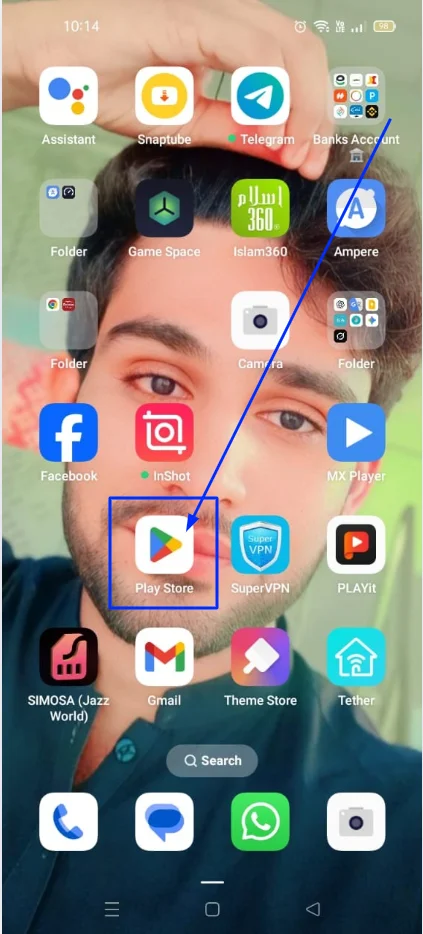
Open Play Store
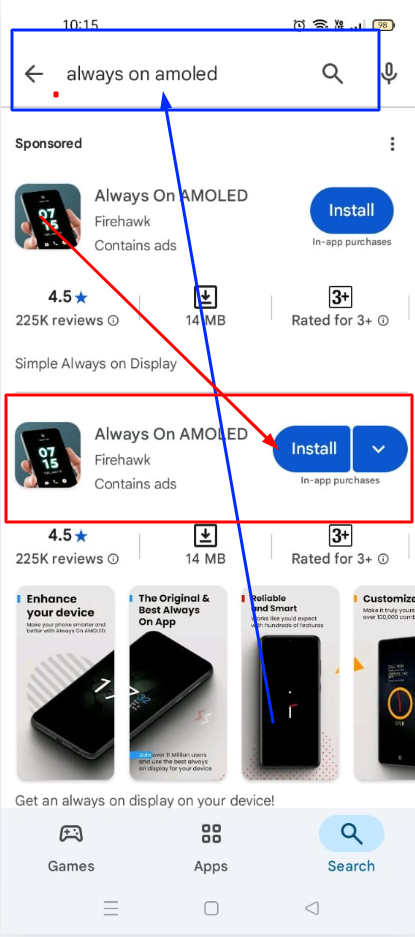
Search for “Always On AMOLED”
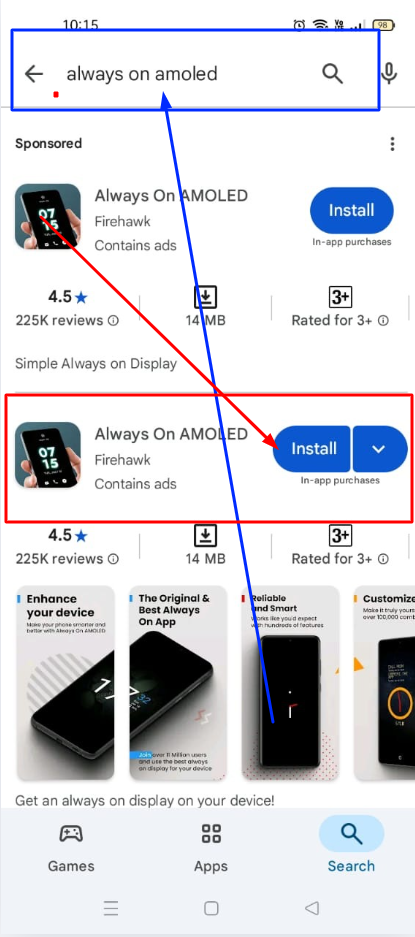
Install the app
Open it and allow all permissions:
- Display over other apps
- Notification access
- Battery optimization off
Choose an AOD style:
- Digital clock
- Animated clocks
- Edge lighting
- Battery percentage
Lock the phone — AOD will appear.
Benefits of Third-Party AOD Apps:
I have told you the benefits of the Always On Display below. These are the ones that have been mentioned.
- Looks exactly like real Always On Display
- Shows notifications
- Works on all phones, including OPPO A54
- Fully customizable
Battery Usage Tips for AOD on LCD Phones
Since AOD is not designed for LCD displays, it uses more battery compared to AMOLED.
Reduce battery usage with these tips:
- Keep AOD brightness low
- Use a simple clock style
- Disable animations
- Turn off AOD while charging
- Disable AOD when battery saver mode is ON
How to Turn OFF Always On Display on OPPO A54
If you want to disable AOD or screen-off features:
From settings:
Check below how you can turn off the Always On Display with the help of settings. I have explained it step by step.
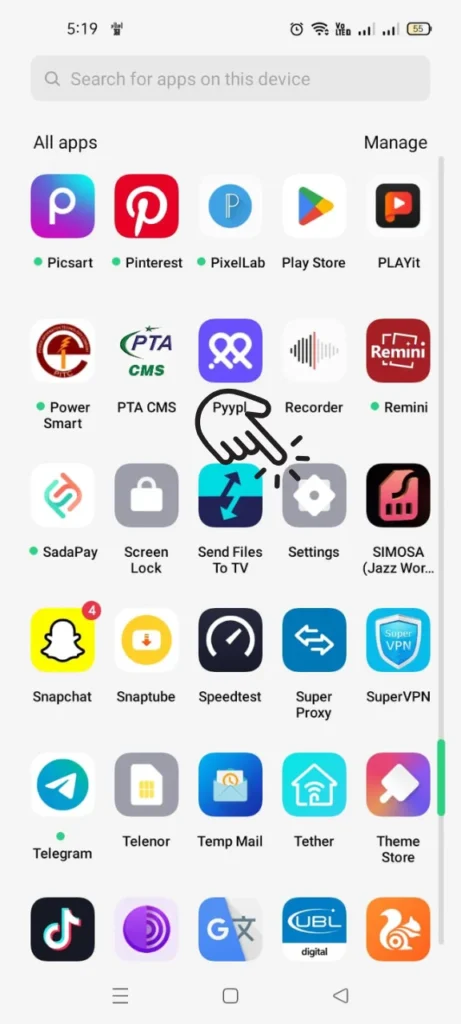
Go to Settings
Tap Display
Turn OFF:
- Always-On Display
- Screen-off Clock
From third-party apps:
How can you disable the Always On Display app that you have installed on your mobile phone? I have explained it to you below.
- Open the installed AOD app
- Turn OFF the main toggle
- Or uninstall the app
Common Problems & Fixes
AOD not appearing?
- Disable Battery Saver Mode
- Allow “Draw Over Other Apps” permission
- Allow background running
Clock disappears after a few minutes?
- Turn OFF battery optimization for the app
Battery draining faster?
- Lower brightness
- Select minimal AOD design
Notifications not showing?
- Enable Notification Access in AOD app settings
Can You Use AOD on OPPO A54?
OPPO A54 does not support real Always On Display due to its LCD screen.
But thanks to Screen-off Clock (if available) and third-party AOD apps, you can still enjoy a similar experience. These apps bring the modern AOD look to your OPPO A54 with customization options that even official AOD doesn’t offer.

My name is Mujahid Shah. I provide helpful information about mobile phones, laptops, and general technology topics. I write simple and easy guides to help people solve common problems and understand tech in a better way.