
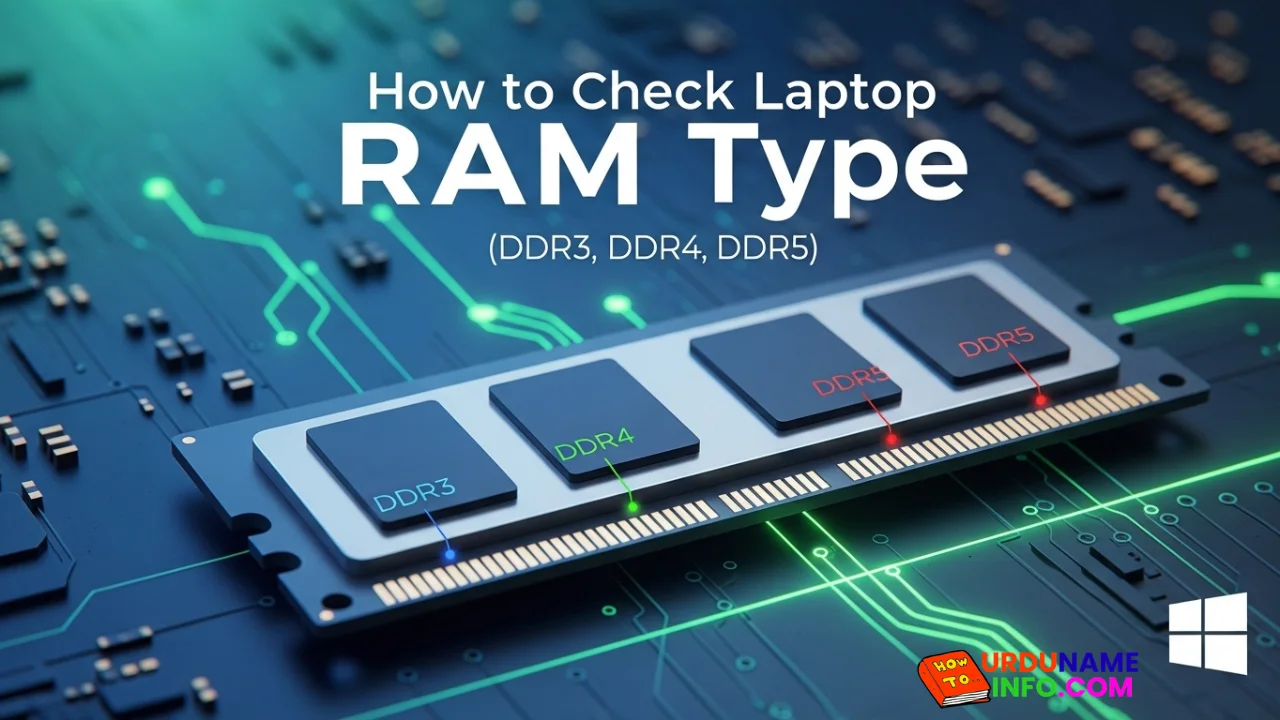
If you are planning to upgrade your laptop’s memory, the first thing you need to know is your RAM type. Buying the wrong RAM (like DDR4 instead of DDR5) can waste money and not work in your system.
The good news is that you don’t need to open your laptop to check this. Windows provides simple ways to find your RAM details safely.
Let’s go step by step.
Method 1: Check RAM Details Using Task Manager
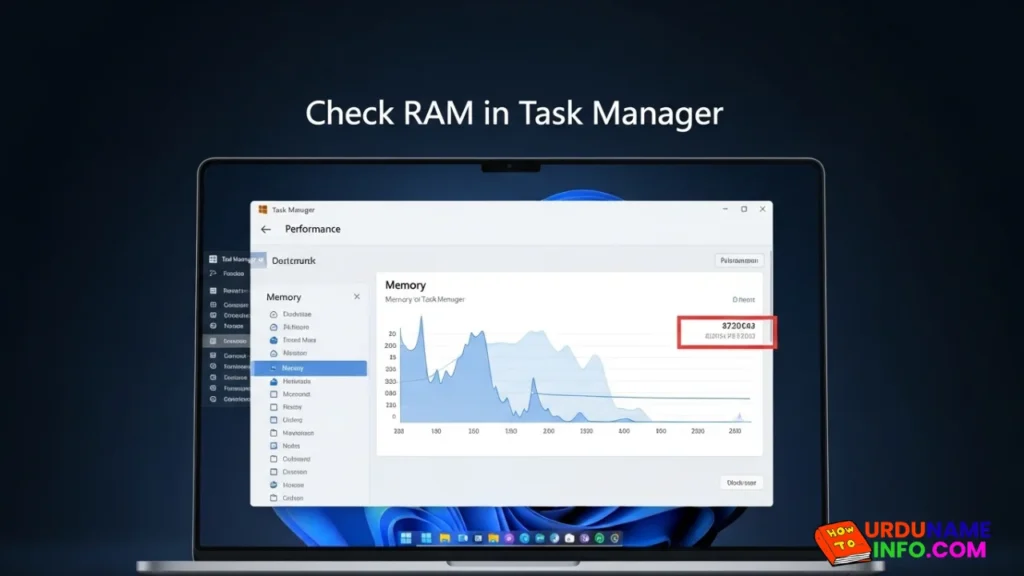
The easiest way to check basic RAM information is through Task Manager.
Open Task Manager and go to the Performance tab. Click on Memory. Here you can see how much RAM is installed, its speed (like 2666 MHz or 3200 MHz), and how many slots are used.
However, Task Manager usually does not directly show DDR type (DDR3, DDR4, DDR5). For that, you may need a more detailed method.
Read More: How to Fix Laptop Screen Flickering in Windows
Method 2: Use Command Prompt (More Accurate)
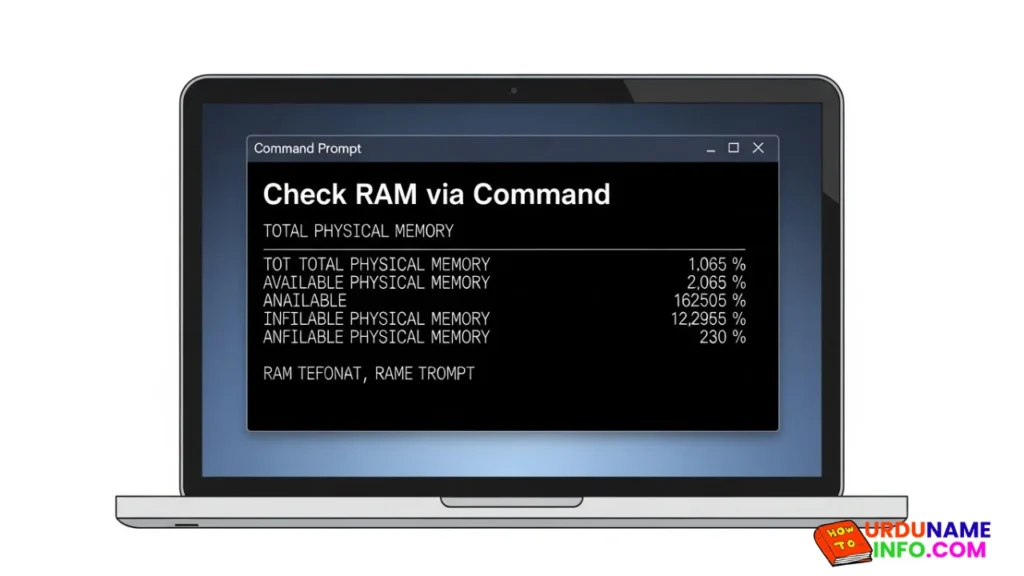
Windows Command Prompt allows you to get detailed RAM information.
By running a simple command, you can view memory details such as capacity, speed, and memory type. You can then match the memory type number with the DDR generation.
This method is safe and does not require installing any software.
Method 3: Use System Information Tool
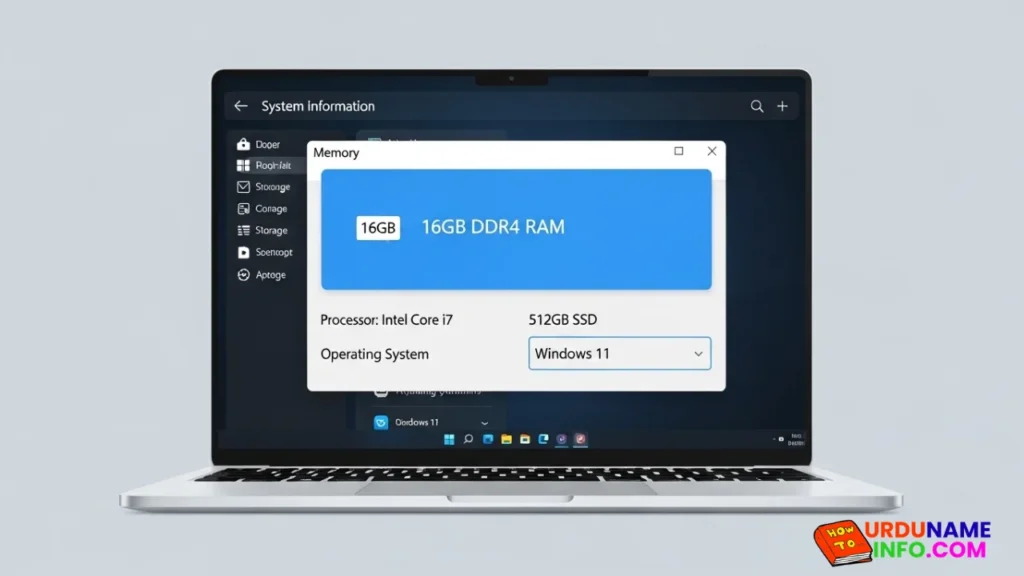
Windows also includes a built-in System Information tool. It shows detailed hardware data, including memory specifications.
Although it may not clearly mention the DDR type in all systems, it provides useful technical information for upgrades.
How to Identify DDR3, DDR4, or DDR5
If Windows does not clearly mention the DDR type, you can:
- Check your laptop model online on the manufacturer’s website
- Compare RAM speed (for example, DDR4 usually ranges between 2133–3200 MHz)
- Use trusted hardware information tools if needed
Knowing the exact DDR type is important before upgrading.
Why Knowing Your RAM Type Matters
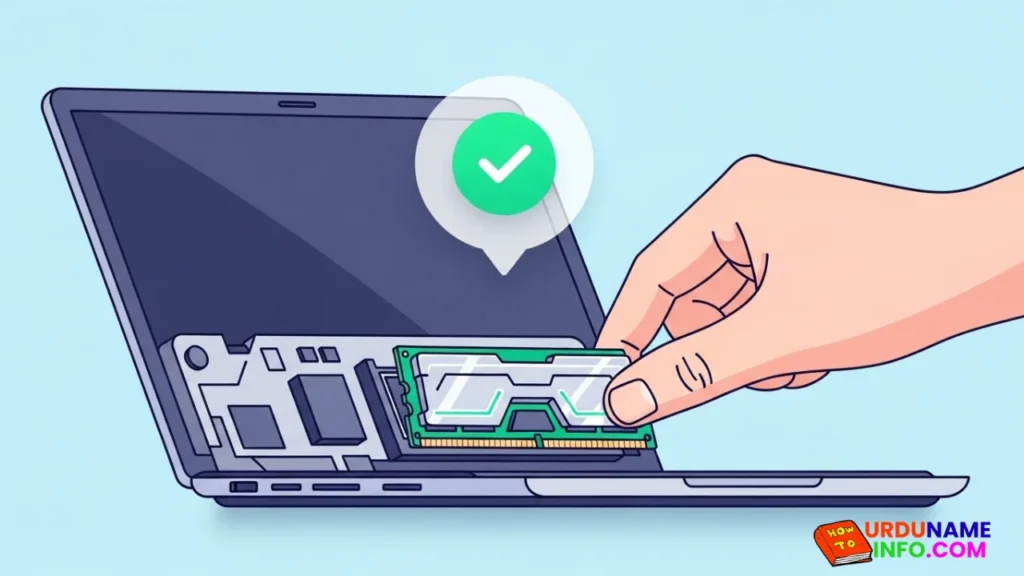
Installing the wrong RAM type will not work in your laptop. Each DDR generation has a different design and slot compatibility.
Checking RAM type helps you:
- Avoid compatibility issues
- Upgrade safely
- Improve laptop performance correctly
Conclusion
Checking your laptop RAM type in Windows is simple and does not require opening the device. Using Task Manager, Command Prompt, or System Information can help you gather the details you need.
Before buying new RAM, always double-check compatibility to avoid mistakes. A correct RAM upgrade can significantly improve your laptop’s speed and performance.

My name is Mujahid Shah. I provide helpful information about mobile phones, laptops, and general technology topics. I write simple and easy guides to help people solve common problems and understand tech in a better way.