
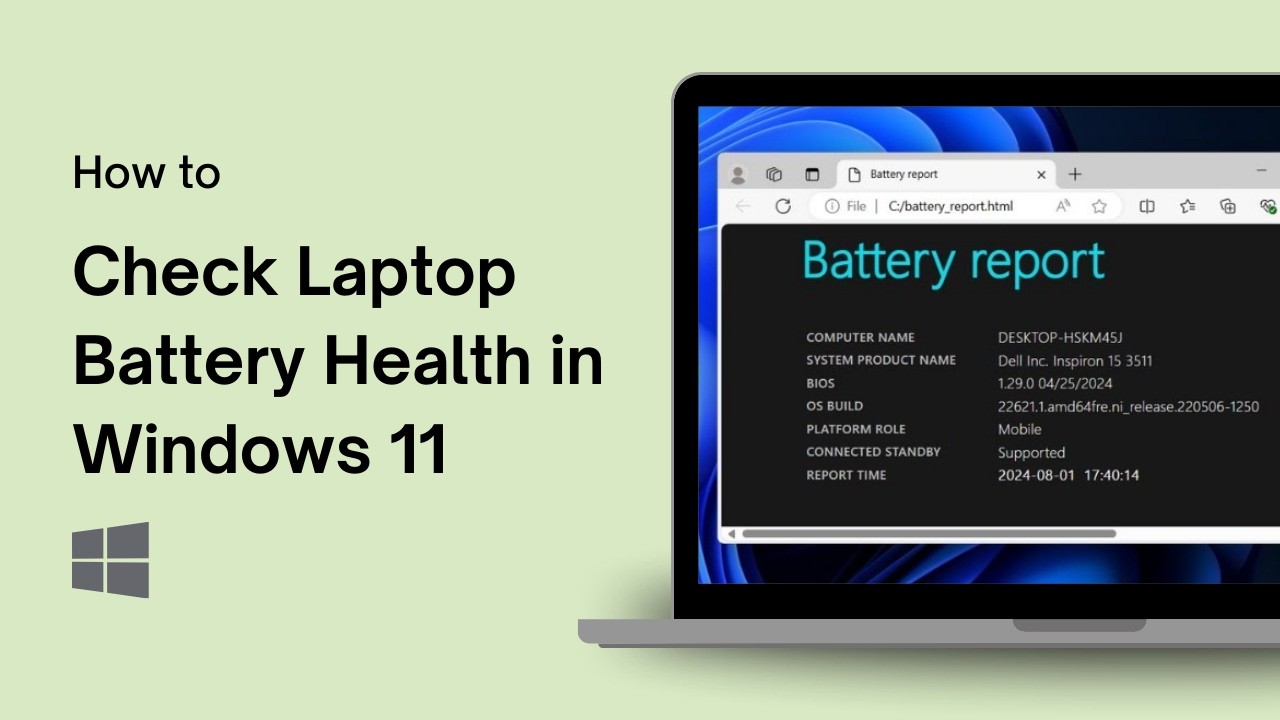
How to Check Laptop Battery Health in Windows 10 & 11 (Complete 2026 Guide)
Laptop battery problems are very common. If your laptop battery drains fast, doesn’t charge fully, or shuts down suddenly, you need to check its battery health.
In this guide, you’ll learn how to check laptop battery health in Windows 10 and Windows 11 without installing any third-party software.
Why You Should Check Battery Health
Over time, laptop batteries lose capacity. After 1–3 years, most batteries don’t hold a charge like before.
Signs of battery issues:
-
The battery drains quickly
-
Laptop shuts down at 20–The battery is stuck at a certain percentage
-
Charging very slowly
-
The laptop only works when plugged in
Let’s check your battery health step by step.
Method 1: Check Battery Health Using CMD (Best Method)
Windows has a hidden battery report feature.
Steps:
1️⃣ Press Windows + X
2️⃣ Click Terminal (Admin) or Command Prompt (Admin)
3️⃣ Type the following command:
4️⃣ Press Enter
You’ll see a message showing where the report is saved (usually in the C drive).
5️⃣ Open File Explorer
6️⃣ Go to:
7️⃣ Open the file named battery-report.html
How to Read Battery Report
Inside the report, check:
🔋 Design Capacity
This is the original battery capacity.
🔋 Full Charge Capacity
This shows current battery health.
If Full Charge Capacity is much lower than Design Capacity, your battery is weak.
Example:
-
Design Capacity: 45,000 mWh
-
Full Charge Capacity: 28,000 mWh
That means battery health is around 60%.
Method 2: Check Battery Usage in Settings
Steps (Windows 11):
-
Open Settings
-
Click System
-
Select Power & Battery
-
Click Battery Usage
You can see:
-
Screen usage
-
Background apps
-
Battery drain details
Method 3: Use BIOS to Check Battery Health
Some laptops (Dell, HP, Lenovo) allow battery check from BIOS.
Steps:
-
Restart laptop
-
Press F2 / F10 / Delete (depends on brand)
-
Open Diagnostics
-
Run Battery Test
This gives the direct battery condition.
How to Improve Laptop Battery Health
If your battery is draining fast, try these tips:
✔ Reduce screen brightness
✔ Turn off Bluetooth when not needed
✔ Disable background apps
✔ Use battery saver mode
✔ Update Windows
✔ Avoid 0% and 100% charging daily
✔ Keep laptop cool
When Should You Replace a Battery?
You should consider replacement if:
-
Battery health below 50%
-
Laptop shuts down randomly
-
Battery not charging
-
Swollen battery
Most laptop batteries last 2–4 years.
Common Questions
How much battery health is good?
Above 80% is good.
60–80% is average.
Below 50% means replacement soon.
Can battery health be increased?
No. Once degraded, it cannot be restored.
Does keeping a laptop plugged in damage the battery?
Modern laptops stop charging at 100%, but constant heat can reduce their lifespan.
Final Thoughts
Checking laptop battery health is very important to avoid sudden shutdowns and performance issues.
Using the built-in Windows battery report tool is the most accurate and free method. If your battery health is low, consider replacing it for better backup time.
Regular maintenance can extend battery life and improve overall laptop performance.

My name is Mujahid Shah. I provide helpful information about mobile phones, laptops, and general technology topics. I write simple and easy guides to help people solve common problems and understand tech in a better way.