

The ringtones or notification sounds in your Oppo A54 mobile phone are very important for you and you use them very easily and you can keep their sounds a little higher or lower. You can also set the ringtone or mobile notification sound of your choice here. Today we will talk about this topic and will also tell you step by step how you can change all these sound notifications. We will tell you about it step by step in this article.
Types of Sounds You Can Change on OPPO A54
OPPO A54 allows you to customize:
- Ringtone (incoming calls)
- Notification Sound (messages, alerts, apps)
- Alarm Tone (optional)
These settings help you recognize different alerts instantly.
How to Change the Ringtone on OPPO A54
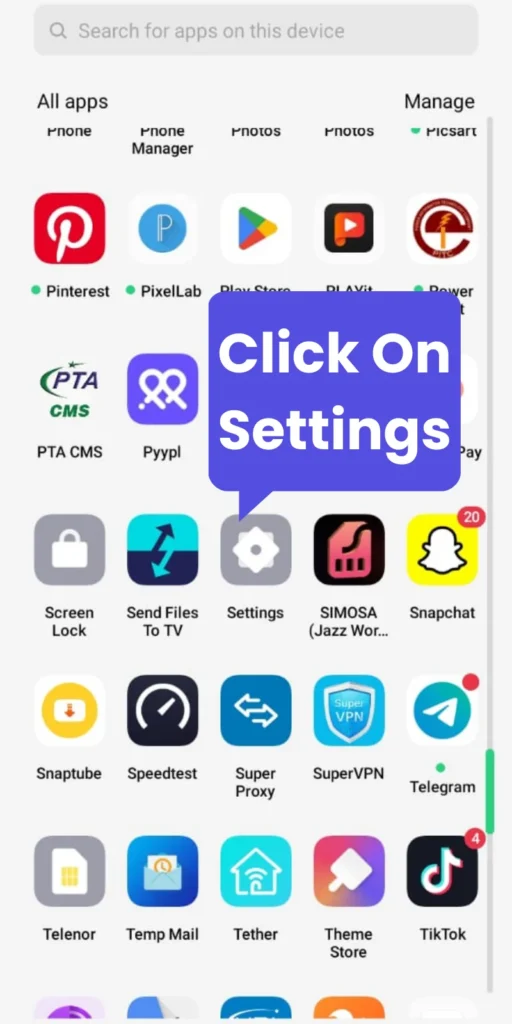
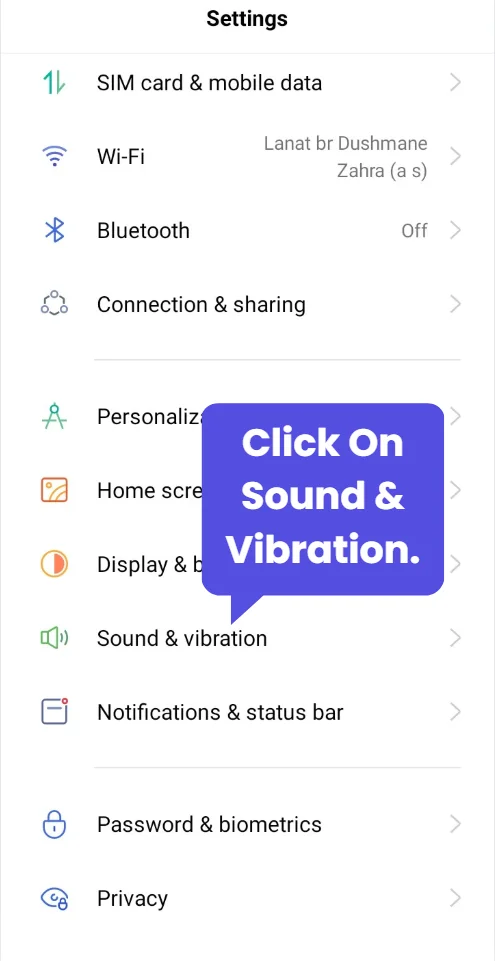
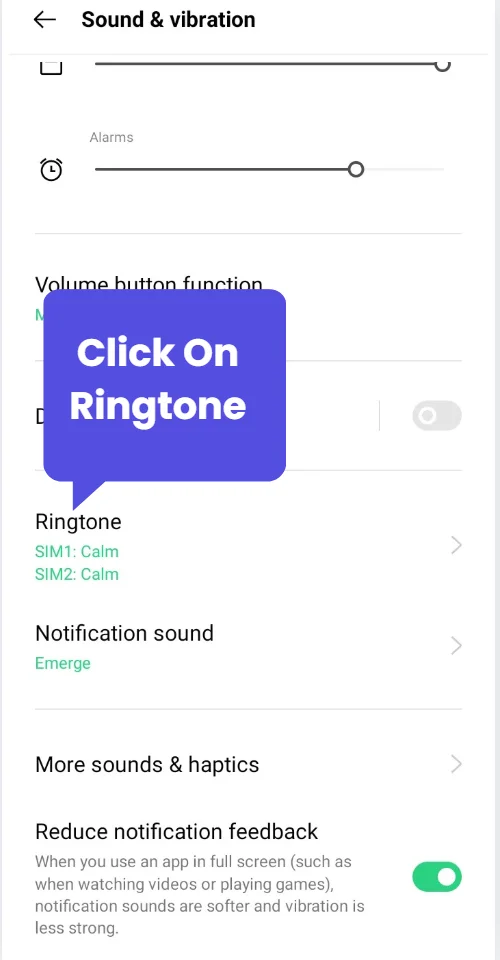
To change the ringtones of Oppo 54 mobile phone, follow the steps below. By following all these steps, you can change your ringtones easily. I have also given you images as a demo below. How we have made this change in our mobile phone, you can also do it this way.
Step-by-Step Guide
Open Settings on your OPPO A54.
Tap Sound & Vibration.
Select Ringtone.
Choose from the default tones OR tap Select from Files to use a custom sound.
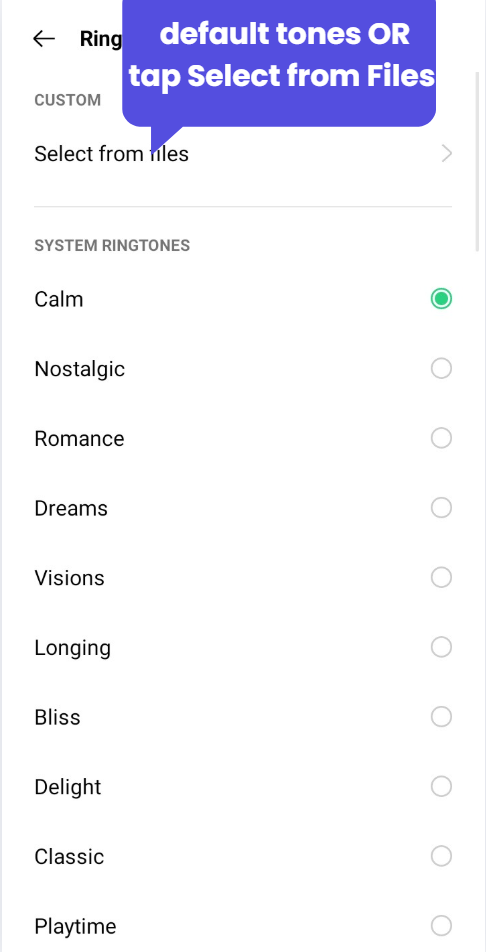
Pick the ringtone you like, and it will be applied instantly.
These were all the steps we followed to change the ringtone of our mobile phone. You can also change it like this.
Using a Custom MP3 Ringtone
Now let’s talk about how you can set an MP3 ringtone. To set your own song as ringtone:
Download or transfer the MP3 to your phone.
First of all, you people should download whatever ringtone you want to set from YouTube or from somewhere else or from someone else. Whatever ringtone you want to set, the ringtone should be in MP3 format.
Go to Settings → Sound & Vibration → Ringtone.
Tap Select from Files.
Choose the MP3 file.
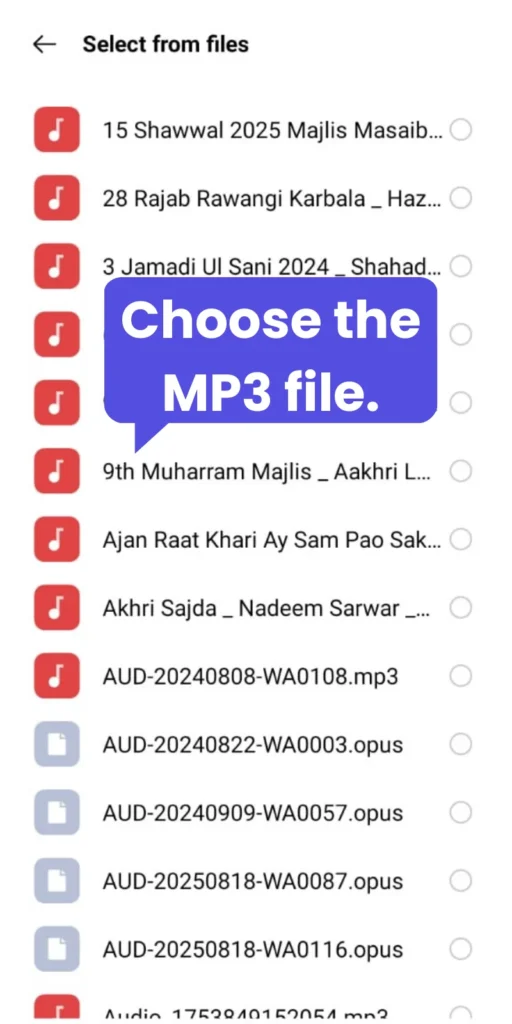
Your custom sound will now play for all calls.
Related Article: How to Change Navigation Buttons to Gesture Mode on OPPO A54
How to Change Notification Sound on OPPO A54
Changing notification sound is also easy:
Simple Method
Open Settings.
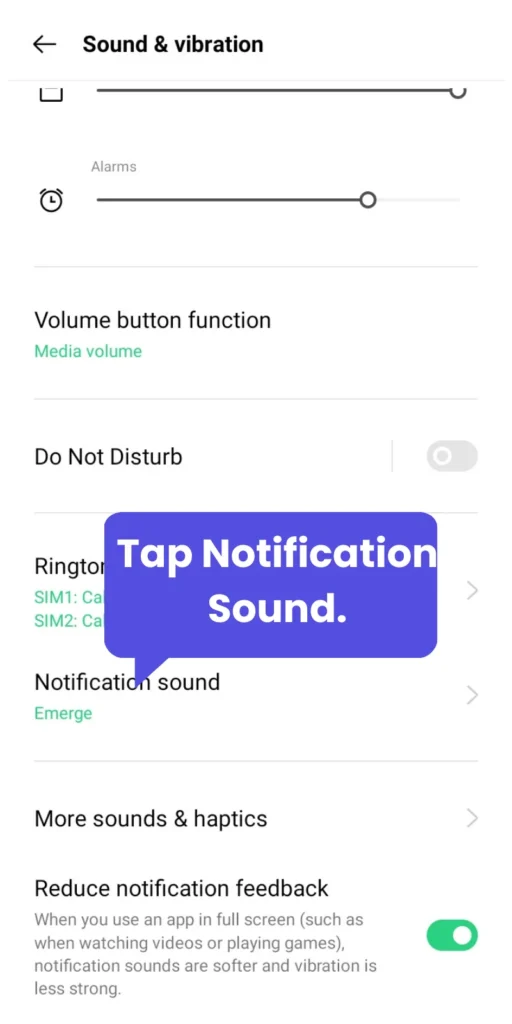
Go to Sound & Vibration.
Tap Notification Sound.
Select any tone you prefer.
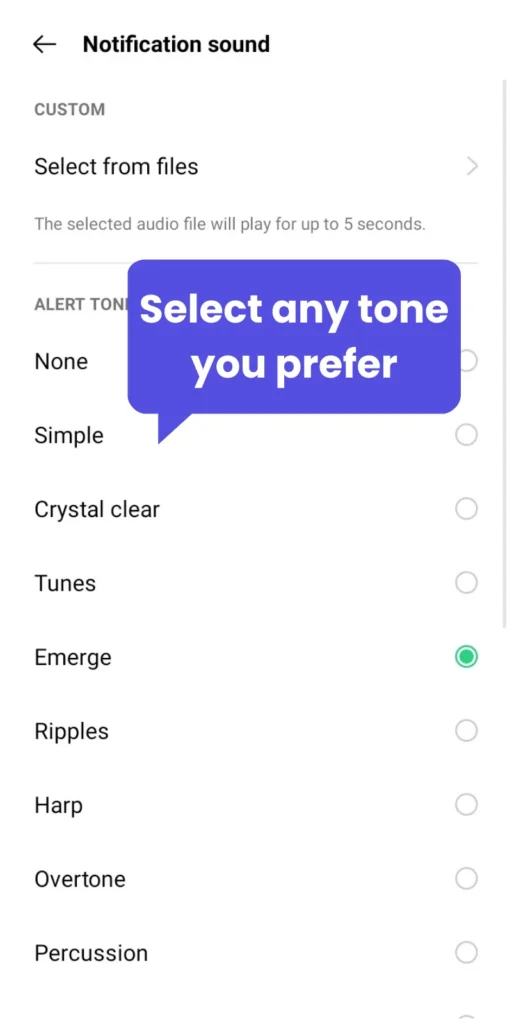
These are all the steps on how you can change the sound notification. By following these steps, we changed our sound notification and you can do it too.
Key Sound Settings Table
| Setting | Where to Find It | Why It’s Used |
|---|---|---|
| Ringtone | Sound & Vibration → Ringtone | Call sound |
| Notification Sound | Sound & Vibration → Notification Sound | Messages & alerts |
| App Sound | Settings → Apps → App Info → Notifications | Custom sound for each app |
| Alarm Tone | Clock App → Alarm → Ringtone | Wake-up sound |
Troubleshooting (If Your Sound Doesn’t Change)
If ringtone or notification sound is not updating:
- Make sure the file is MP3 or supported format
- Move the audio file to Internal Storage → Ringtones
- Restart your phone once
- Check Media Volume is not low
- Update your system if needed
These quick fixes solve most issues.
Conclusion
So, I have told you all this in this article, how you guys can change the ringtones of your mobile phone Oppo A94 and also change the notification sound. I have explained everything to you guys in simple language and along with that I have also shown you how the changes will be done. I have also shared the images with you as a demo so that it is easy for you to Change Ringtone & Notification Sounds.

My name is Mujahid Shah. I provide helpful information about mobile phones, laptops, and general technology topics. I write simple and easy guides to help people solve common problems and understand tech in a better way.