
Many people think a slow laptop means old hardware or the need for a new device. In reality, laptops often slow down because of everyday mistakes that users don’t even realize they are making.
These mistakes gradually reduce performance, affect battery life, and make the system feel laggy. The good part is that most of them are easy to fix once you know what to avoid.
Let’s look at the most common laptop mistakes that reduce performance.
Running Too Many Startup Programs
One of the biggest mistakes is allowing too many apps to start automatically when the laptop turns on. Each startup program uses memory and processing power, even if you don’t need it right away.
Over time, this makes the startup slow and affects overall responsiveness.

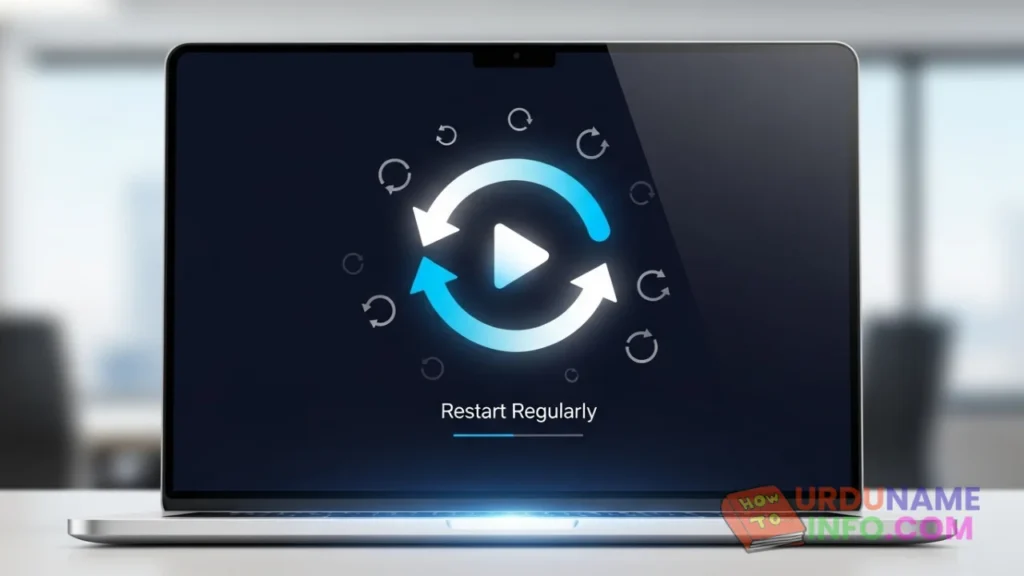
Never Restarting the Laptop
Many users simply close the laptop lid instead of restarting it. While sleep mode is convenient, not restarting for weeks causes memory overload and background processes to pile up.
A regular restart clears temporary system data and refreshes performance.
Ignoring Software and Windows Updates
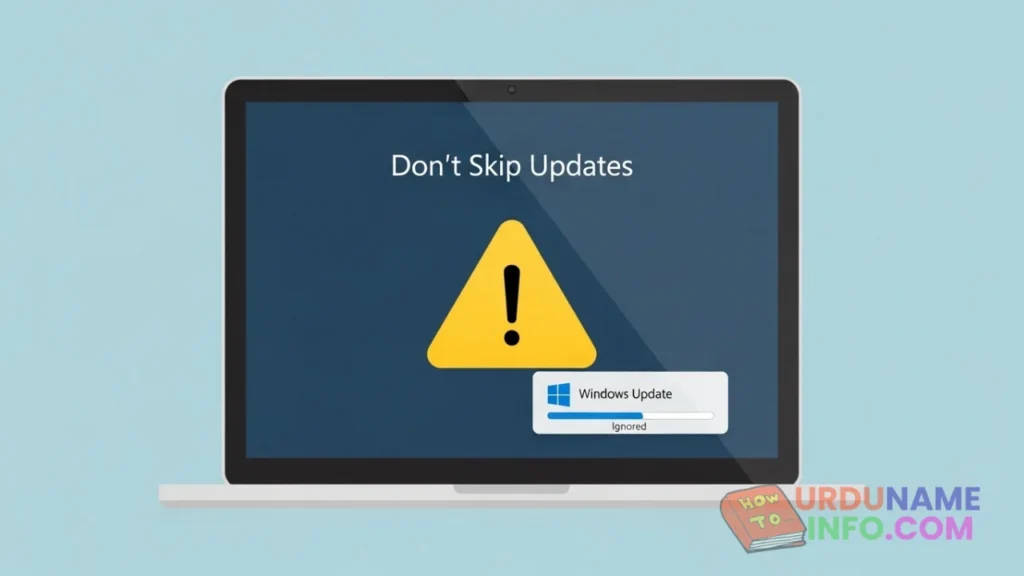
Delaying updates is another common mistake. Updates often include performance improvements, bug fixes, and security patches.
Skipping them can cause system instability, slow performance, and compatibility issues with newer apps.
Keeping the Storage Almost Full
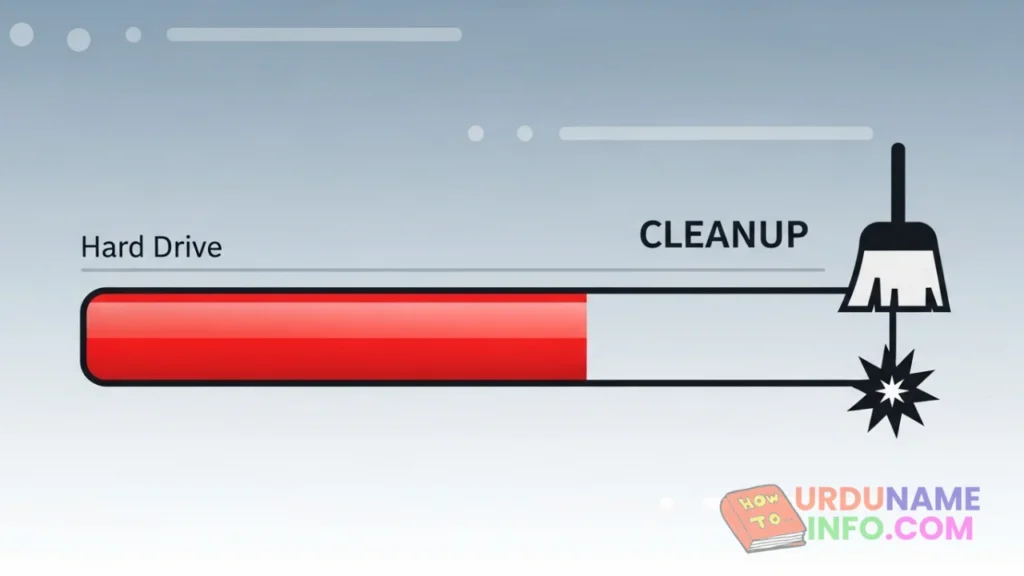
When the system drive is nearly full, Windows struggles to manage files and virtual memory. This results in slower performance, longer load times, and frequent freezes.
Maintaining free disk space is essential for smooth operation.
Read More: How to Clear Cache in Windows 10 & 11 (Step-by-Step Guide)
Using Too Many Browser Extensions
Web browsers are often the most-used apps on a laptop. Installing too many extensions can slow down browsing and increase RAM usage.
This mistake makes the entire system feel slow, especially when multiple tabs are open.

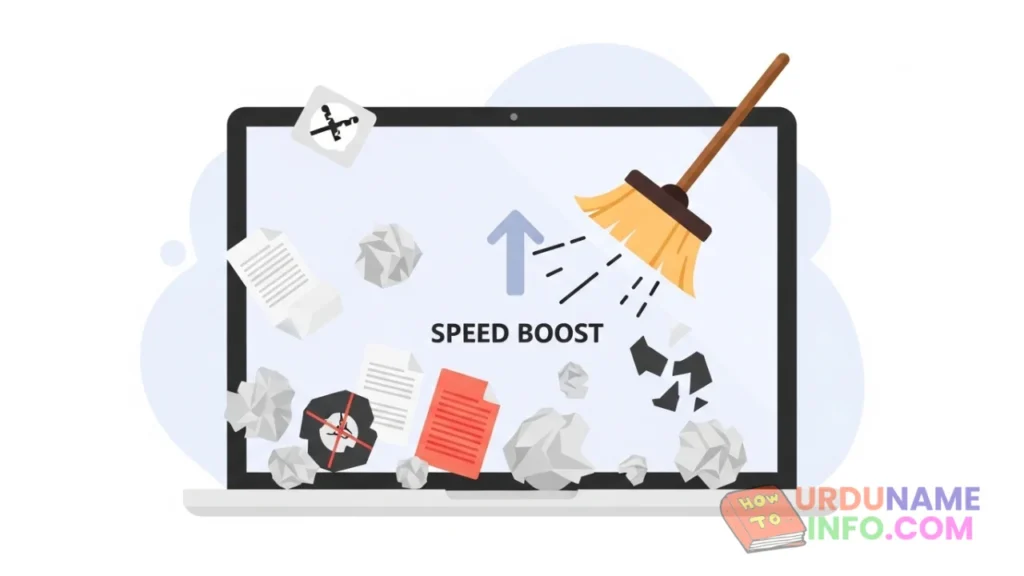
Not Cleaning Temporary Files
Temporary files and cache accumulate silently over time. When left unchecked, they consume storage and reduce system efficiency.
Regular cleaning helps keep the laptop fast and responsive.
Blocking Airflow and Overheating the Laptop
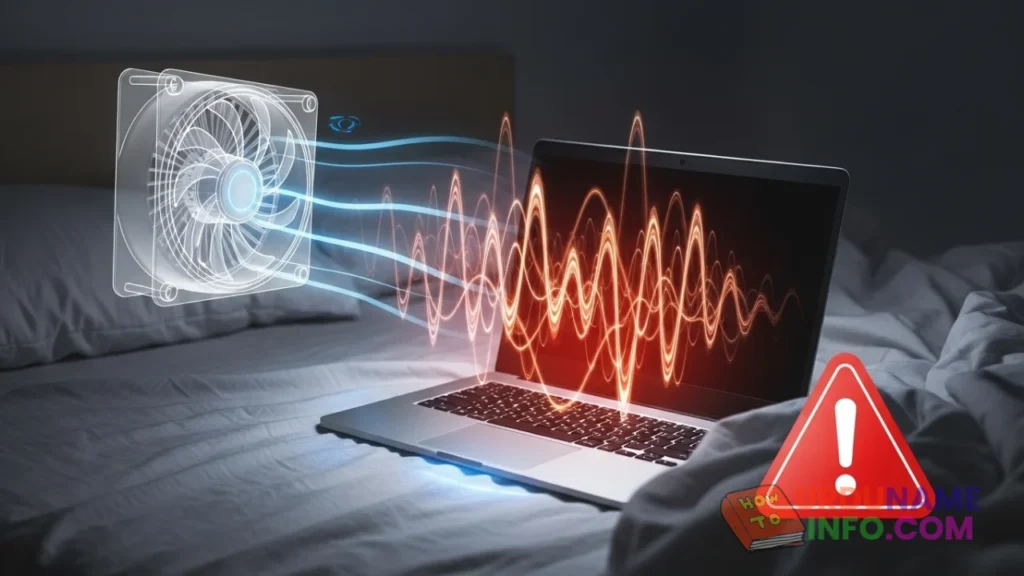
Using a laptop on soft surfaces like beds or cushions blocks airflow. This causes overheating, which forces the system to slow down to protect hardware.
Heat is one of the biggest enemies of laptop performance.
Installing Unnecessary Software
Many users install software “just in case” and never use it again. These programs run background services and consume system resources.
Removing unused software helps reduce system load and improve speed.

Ignoring Battery Health
Poor battery health can cause performance throttling, especially on laptops running in power-saving mode.
Checking battery health helps identify power-related performance issues.
Read More: How to Check Laptop Battery Health in Windows (Windows 10 & 11)
Conclusion
Laptop performance issues are often caused by habits, not hardware. Small mistakes made daily can slowly reduce speed and reliability.
By avoiding these common laptop mistakes and maintaining basic system care, you can keep your laptop running smoothly for years without spending money on upgrades.

My name is Mujahid Shah. I provide helpful information about mobile phones, laptops, and general technology topics. I write simple and easy guides to help people solve common problems and understand tech in a better way.