
Many users notice that their laptop becomes slow right after installing a Windows update. Apps take longer to open, startup feels delayed, and overall performance drops. This situation can be frustrating, especially when everything was working fine before the update.
The truth is, this slowdown is very common and usually temporary. Windows updates bring new features, security patches, and background changes that can affect performance—especially on older laptops.
Let’s understand the real reasons behind this issue and what you can do about it.
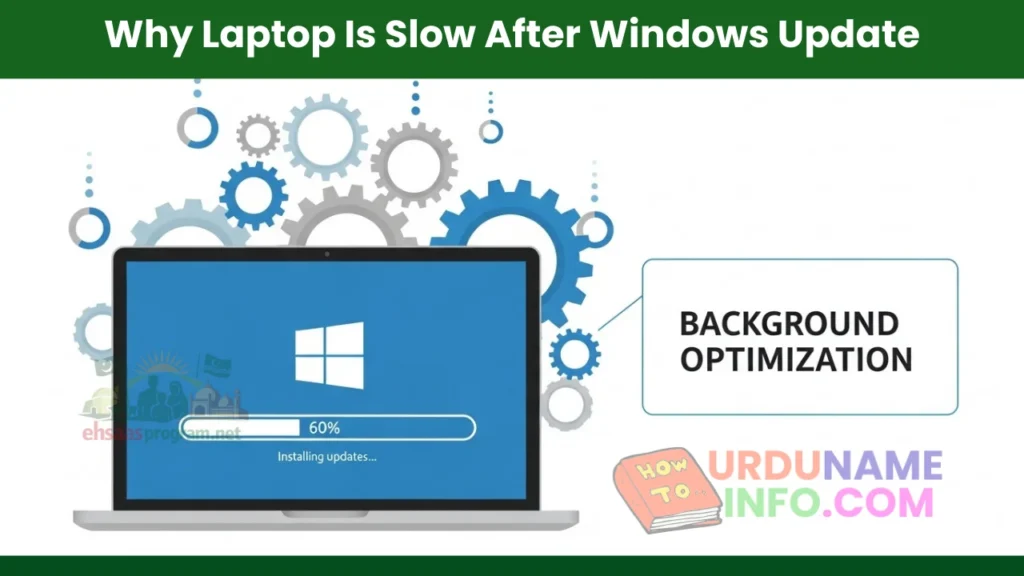
Background Processes Running After Update
After a Windows update, your system continues working in the background. It may be indexing files, optimizing apps, or completing update-related tasks silently.
These background activities consume CPU and RAM, which makes the laptop feel slow for some time. Once these processes finish, performance often improves automatically.
Increased Startup Load
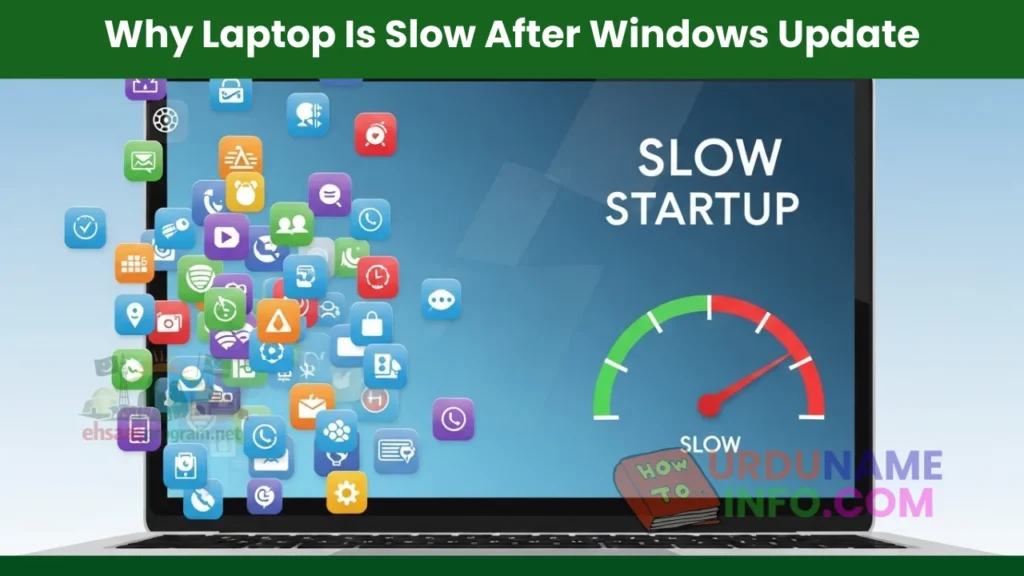
Windows updates sometimes enable new startup services or reset previous settings. As a result, more programs may start automatically when your laptop boots.
This increases startup time and slows down overall responsiveness, especially on systems with limited RAM.
Driver Compatibility Issues
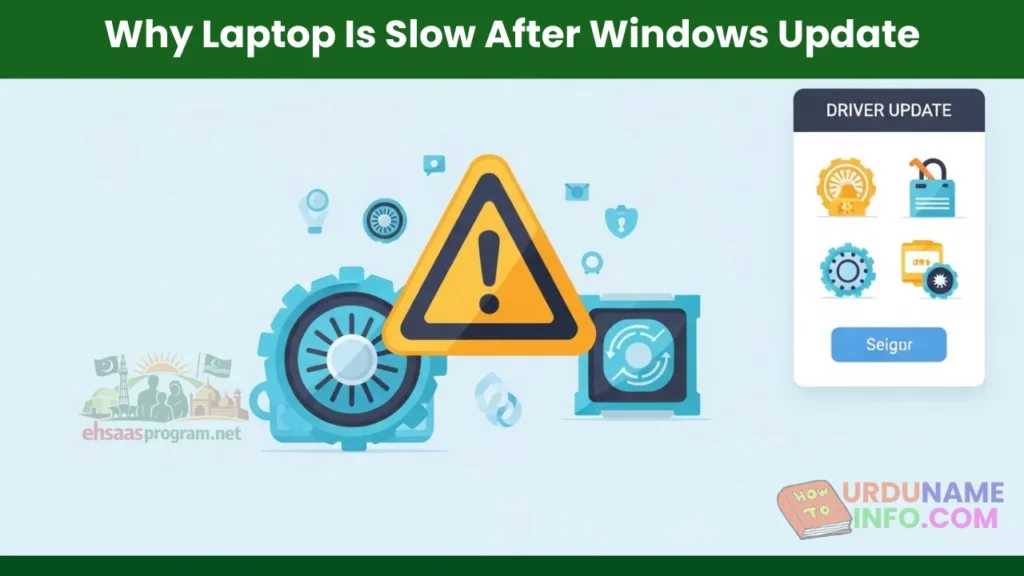
Sometimes, Windows updates install generic drivers that are not fully optimized for your hardware. This can affect performance, display smoothness, or battery usage.
Outdated or incompatible drivers are a common reason why laptops feel sluggish after an update.
Windows Update Bugs or Glitches
Not every update is perfect. Occasionally, Windows updates contain bugs that cause performance issues on certain devices.
These problems are usually fixed in the next patch, but until then, users may experience slowdowns, freezes, or high CPU usage.
Storage and Cache Overload
After an update, temporary files and leftover system data can pile up. This extra data takes up disk space and slows down system operations.
If your system drive is already nearly full, the impact becomes even more noticeable.
Read More: How to Clear Cache in Windows 10 & 11 (Step-by-Step Guide)
Visual Effects Reset to Default
Windows updates sometimes reset visual settings to default, enabling animations and effects that consume extra system resources.
Older laptops struggle with heavy visual effects, which result in lag and delayed responses.
Is This Slowdown Permanent?
In most cases, NO. The Windows update slowdown is temporary. Once background tasks are complete and the system stabilizes, performance improves.
However, if the issue continues for several days, manual optimization becomes necessary.
Read More: How to Speed Up Old Laptop Without Upgrading Hardware
How Long Should You Wait After an Update?
Usually, you should give your laptop 24 to 72 hours after a major update. During this time, Windows finishes optimization tasks.
If your laptop is still slow after that period, it’s a sign that settings need adjustment.
Conclusion
A slow laptop after a Windows update is normal and happens to many users. Updates run background tasks, reset settings, and sometimes introduce temporary bugs.
The key is understanding that this issue is usually fixable without reinstalling Windows or upgrading hardware. With a bit of patience and smart optimization, your laptop can return to smooth performance.

My name is Mujahid Shah. I provide helpful information about mobile phones, laptops, and general technology topics. I write simple and easy guides to help people solve common problems and understand tech in a better way.