
If you want to use two apps at the same time on your Oppo A54 mobile phone, the split screen feature makes multitasking very easy. You can run two apps at the same time with it. Whether you want to play YouTube, you can also chat on WhatsApp below, or you want to run a browser and use other apps on top of it, split screen can save a lot of time. In this article, we will give you complete details about it. You will know how it works and how to enable this split screen. We will see all this in this article. Read the article till the end.
Does OPPO A54 Support Split Screen?
Yes, the OPPO A54 fully supports split screen because it runs on ColorOS, which includes powerful multitasking features. With this device, you can easily use two apps at the same time through the split-screen mode. ColorOS also offers tools like the Smart Sidebar and Floating Windows, making multitasking even smoother. Most apps work perfectly in split screen, although a few full-screen apps such as certain games or the camera may not support this feature.
How to Enable Split Screen on OPPO A54 (Step-by-Step Guide)
There are many ways to enable split screen. I have mentioned all the methods below, whichever way you want to do it. You can enable split screen by following it step by step.
1. Enable Split Screen from Recent Apps
This is the most common method.
Open the first app you want to use
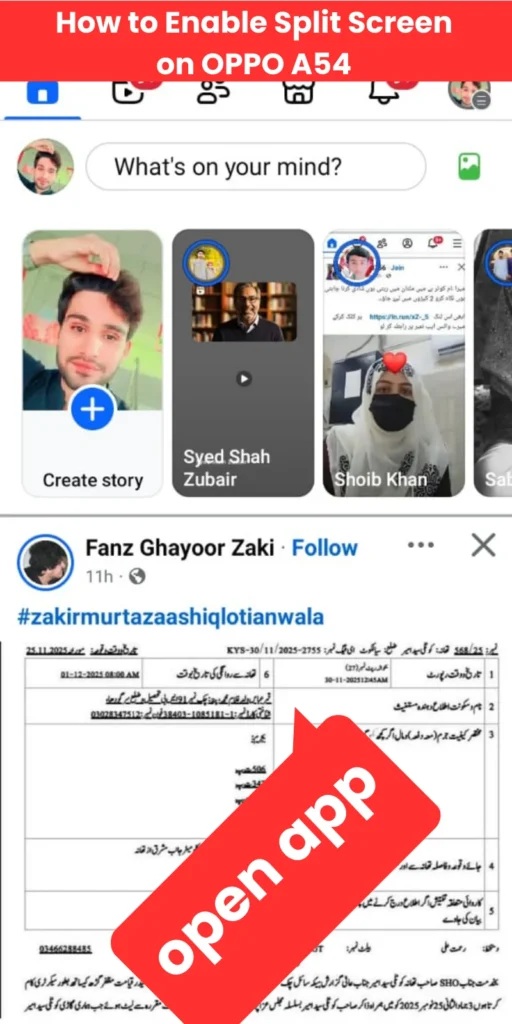
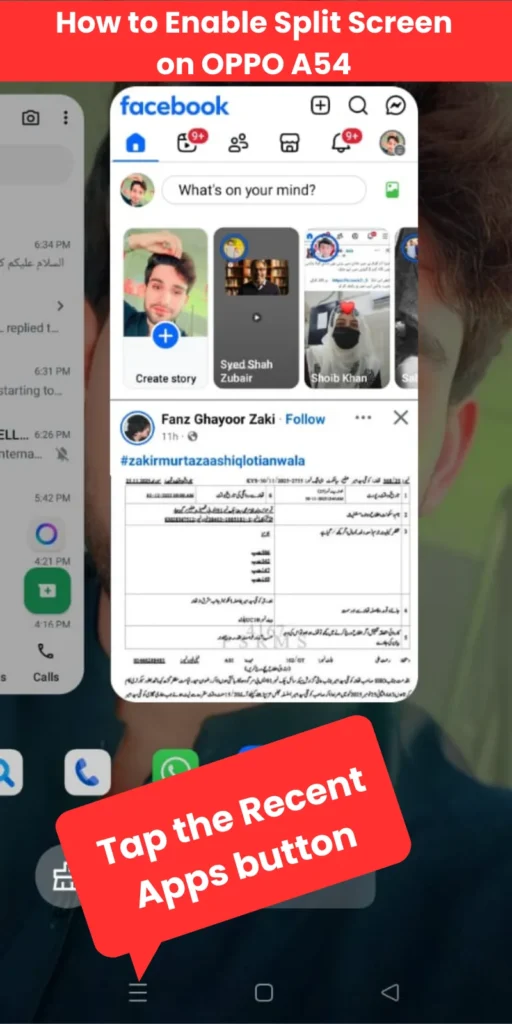
Tap the Recent Apps button
On the app preview, tap the three dots or Split Screen option
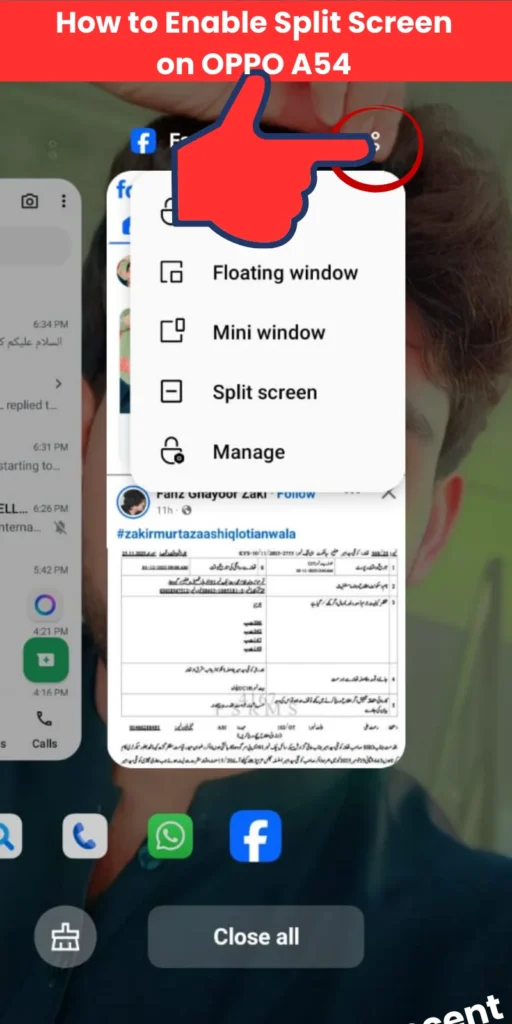
Select the second app from the list
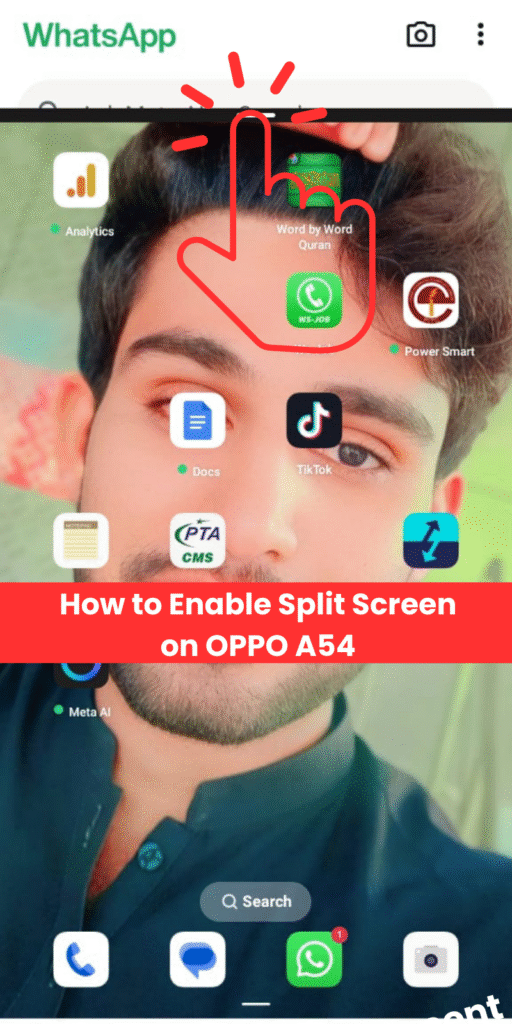
Your screen will now display two apps at once.
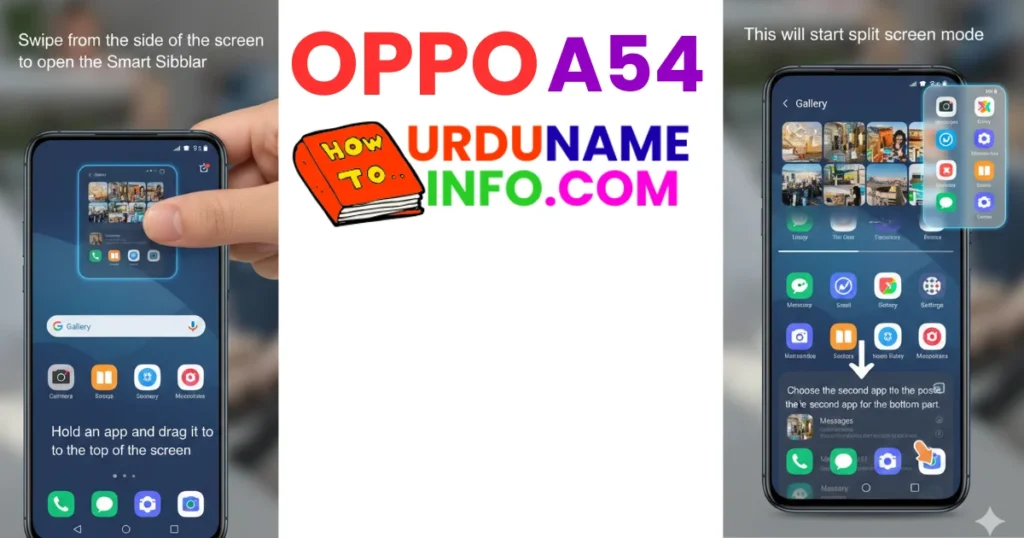
2. Use Smart Sidebar for Faster Split Screen
If Smart Sidebar is enabled, multitasking becomes very quick.
- Swipe from the side of the screen to open the Smart Sidebar
- Hold an app and drag it to the top of the screen
- This will start split-screen mode
- Choose the second app for the bottom part
If the Smart Sidebar is not appearing, enable it:
Settings → Convenience Tools → Smart Sidebar → Turn On
Related Blog Post
- How to Change Keyboard Language on OPPO A54
- How to Change Keyboard Language on OPPO A54
- How to Change Navigation Buttons to Gesture Mode on OPPO A54
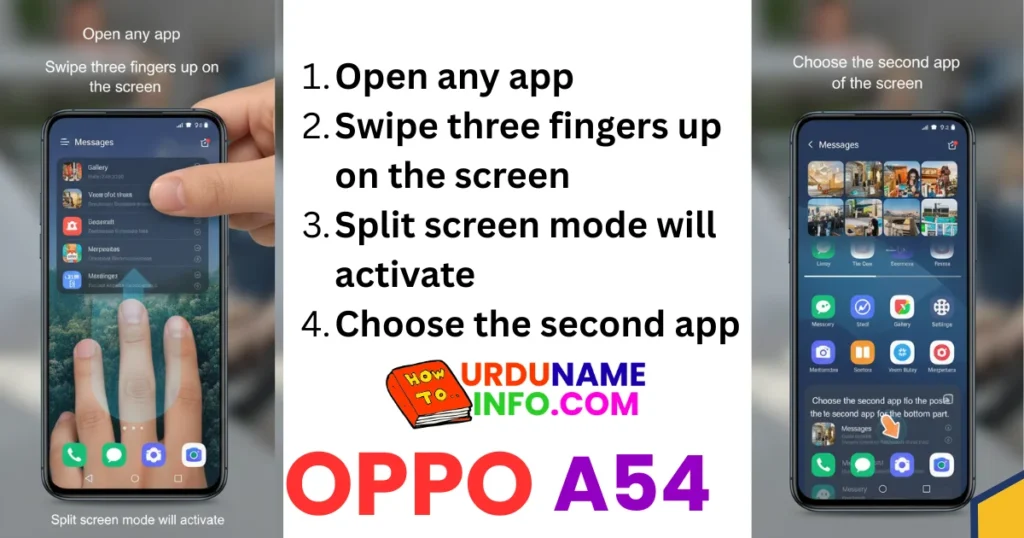
3. Use Three-Finger Gesture (If Available)
Some versions of ColorOS support a gesture to enter split screen.
- Open any app
- Swipe three fingers up on the screen
- Split screen mode will activate
- Choose the second app
If it doesn’t work, enable it here:
Settings → Convenience Tools → Gestures & Motions → Three-Finger Split Screen
How to Adjust or Close Split Screen
Split screen is flexible and easy to control.
Resize the Apps
- Drag the divider bar up or down to change screen size.
Swap Apps
- Tap the Switch icon (if available) to exchange top and bottom apps.
Exit Split Screen
- Drag the divider bar to the top or bottom completely
- Or tap Close Split Screen
Which Apps Support Split Screen?
Supported Apps
- YouTube
- Chrome
- Messages
- Notes
- Gmail
- Settings
Not Supported
- Camera
- Games (PUBG, Free Fire, Car Racing, etc.)
- Full-screen video players
This support depends on app design, not OPPO.
Conclusion
In this article, I have told you how to enable the split screen on your Oppo A54 mobile phone and also provided a step-by-step guide to how it will work and I have also given images along with it. Remember, this feature is very important. With this feature, you can use two apps at the same time, that is, you can open WhatsApp on the top and play YouTube videos etc. on the bottom. In this way, you can do it very easily. This feature is very important. I hope you like this article.

My name is Mujahid Shah. I provide helpful information about mobile phones, laptops, and general technology topics. I write simple and easy guides to help people solve common problems and understand tech in a better way.