

Do you want to type in English, Urdu, Hindi or any other language on your Oppo A54 mobile, then you can Change Keyboard Language in a few seconds. Oppo a54 supports multiple languages, you can add or remove any language at any time. In this article, I will tell you in full detail how you can change the keyboard of your mobile phone to any language and at the same time I will also guide you step by step and I will also show you how to change it in your mobile phone. Read till the end.
What You Can Change in OPPO A54 Keyboard
Your OPPO A54 allows you to adjust several keyboard settings including:
- Adding new typing languages
- Switching between multiple languages
- Changing layouts (QWERTY, QWERTZ, etc.)
Most OPPO phones use Gboard or the OPPO Keyboard, and both support multilingual typing.
How to Change Keyboard Language on OPPO A54 (Step-by-Step Guide)
Below I have given a full step by step guide on how you can change the keyboard Language of Oppo A54 Go. By following the steps below, you can also change the Keyboard language of your mobile phone.
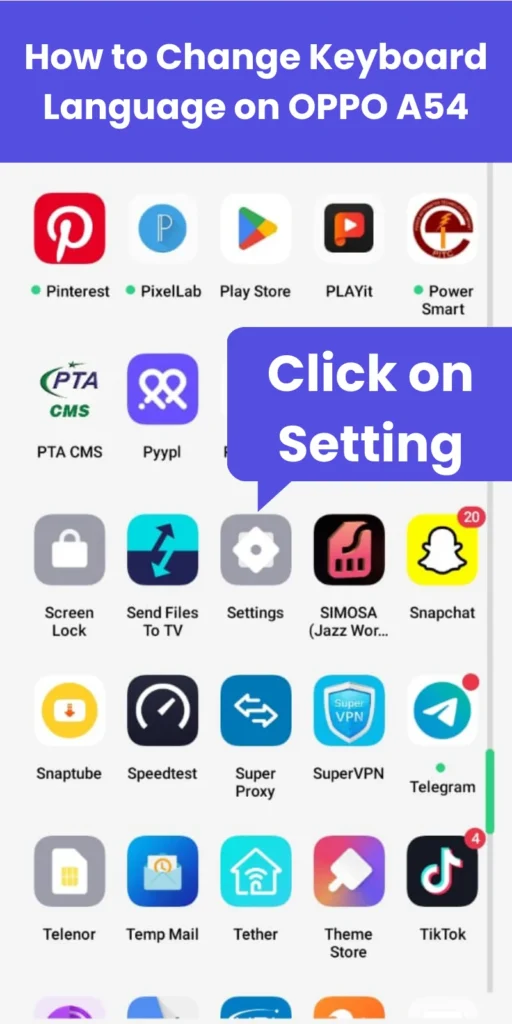
1. Open Settings
You guys, first of all, after unlocking your mobile phone, go to the app section at the top of the home page, and there, click on the settings button found on the home page.
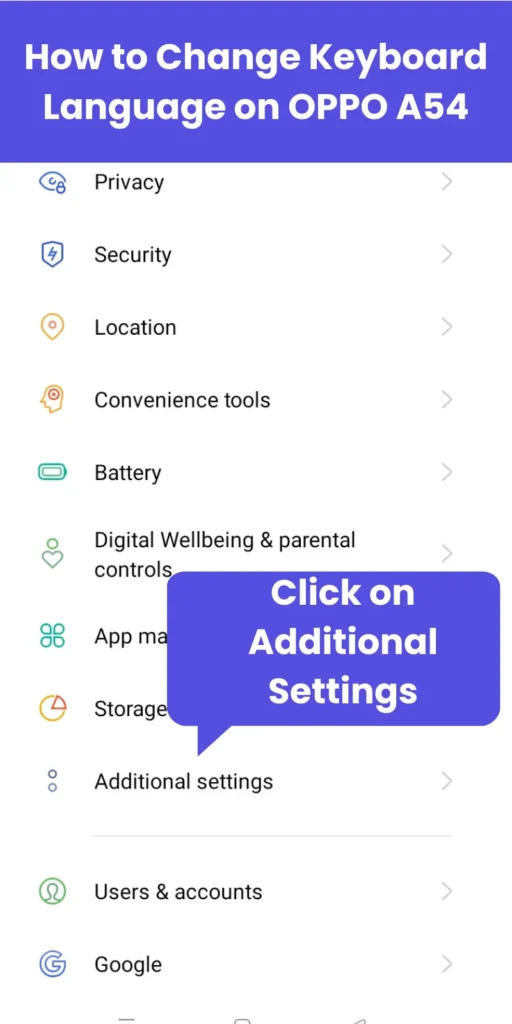
2. Go to “Additional Settings”
Scroll down and tap Additional Settings.
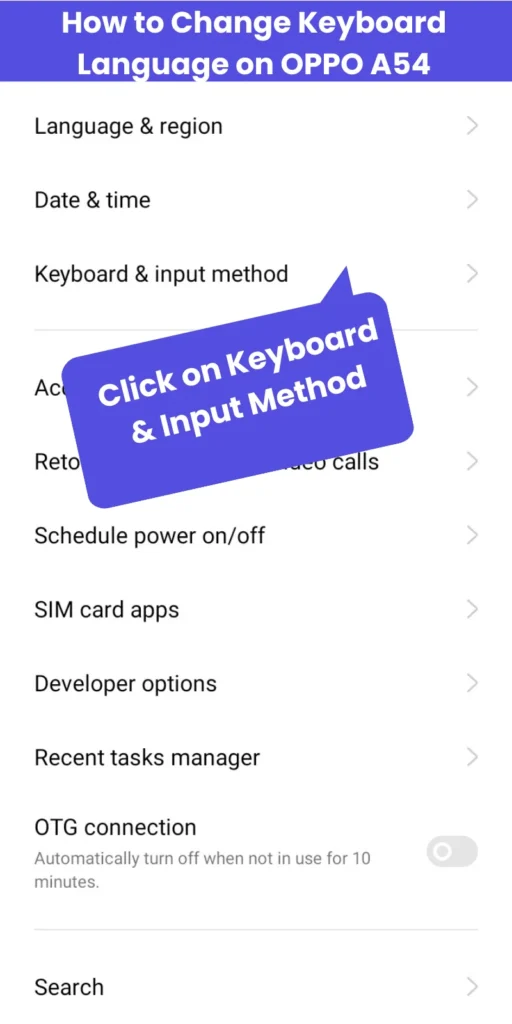
3. Select “Keyboard & Input Method”
Here you will see your active keyboard (Gboard / OPPO Keyboard).
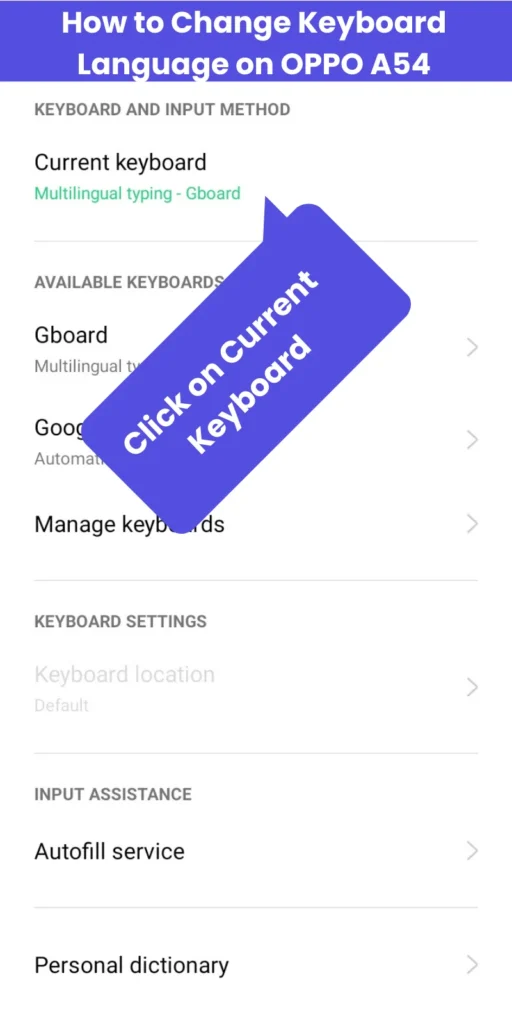
4. Tap “Current Keyboard”
Choose the keyboard you are using.
5. Select “Languages”
A list of available languages will appear.
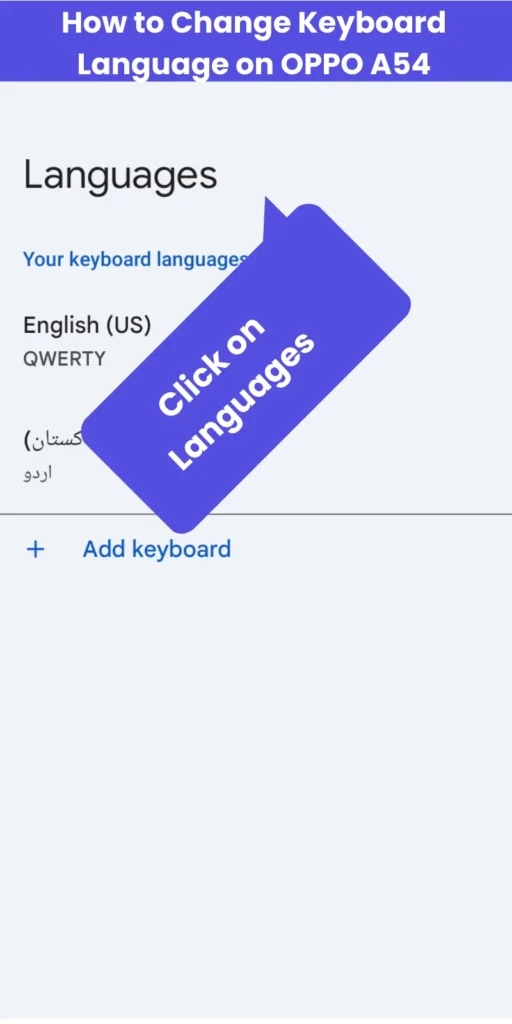
6. Add Your Desired Language
Tap Add Keyboard and select any language such as:
- Urdu
- English
- Hindi
- Arabic
- Pashto
- Punjabi
Your phone will install the language instantly.
How to Switch Keyboard Languages While Typing
You don’t need to open Settings every time. You can switch languages directly from the keyboard.
Method 1: Swipe Spacebar
- Simply swipe left or right on the spacebar to change the language.
Method 2: Tap the Globe (🌐) Icon
- Tap the globe icon to change between active languages.
Both methods work smoothly on Gboard and OPPO keyboard.
How to Add Urdu, Hindi, Arabic, or Punjabi Keyboard
If you want to type in regional languages, follow these steps:
- Go to Settings → Additional Settings
- Tap Keyboard & Input Method
- Select Gboard → Languages
- Tap Add Keyboard
- Choose Urdu / Hindi / Arabic / Punjabi
- Tap Done
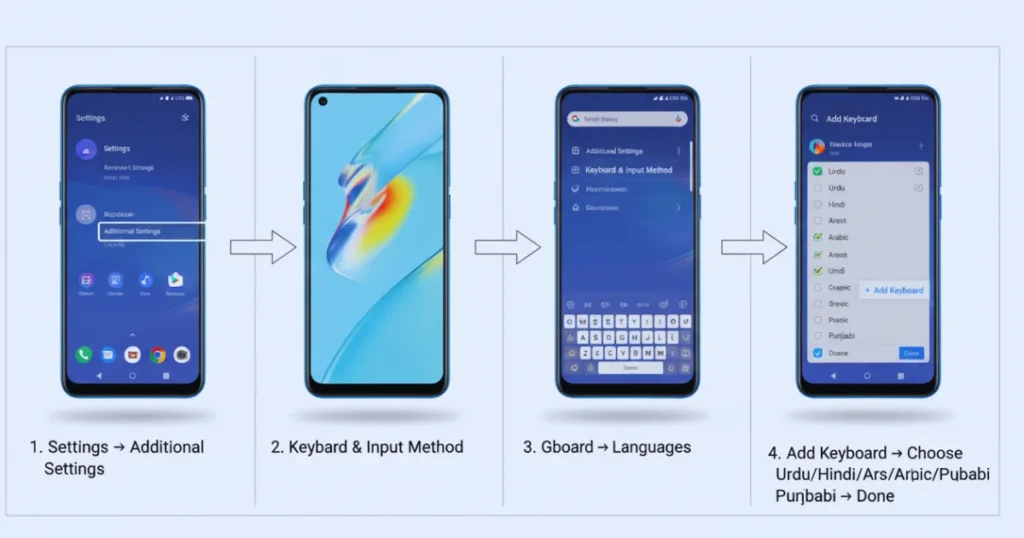
Your language will be added instantly.
Read More: How to Change Ringtone & Notification Sounds on OPPO A54
How to Change Navigation Buttons to Gesture Mode on OPPO A54
How to Remove or Disable Any Keyboard Language
If you added a language by mistake, you can remove it easily:
- Open Gboard → Languages
- Select the language you want to delete
- Tap Delete / Remove
This will keep your keyboard clean and simple.
Common Problems & Solutions
Language Not Showing?
- Update Gboard from Play Store
- Restart your phone
Keyboard Not Switching Languages?
- Enable “Show language switch key” inside Gboard settings
These minor issues usually resolve quickly.
Conclusion
So in this article I have told you in full detail how you can change the keyboard language in your mobile Oppo A54. You can do all this in a few seconds in simple steps and how you can add the language in your keyboard. I have told you all this in simple steps. I hope you liked this article very much. If possible, then definitely share it with your friends.

My name is Mujahid Shah. I provide helpful information about mobile phones, laptops, and general technology topics. I write simple and easy guides to help people solve common problems and understand tech in a better way.