
If you want a clean screen and smooth navigation on the OPPO A54, switching from the classic 3-button layout to Gesture Mode is a great option. Gesture mode makes the app feel faster and more modern, removing the navigation bar at the bottom of the app and adding more space, and the screen itself looks great. In this guide, you will learn what gesture navigation is and how to enable it step by step. And I will definitely share all these steps with you by doing them on my mobile so that you don’t have any problem understanding them.
What Is Gesture Navigation on OPPO A54?
This gesture replaces the traditional back, home, and recent buttons with simple swipe gestures, meaning there is no need to click on the up button. The buttons will not move the mobile back or forward. You can control your mobile phone only by swiping. I will also tell you what are its benefits below.
Benefits of Gesture Mode
- Gives more screen space
- Faster and smoother navigation
Gesture mode feels more natural once you get used to it.
How to Change Navigation Buttons to Gesture Mode on OPPO A54
Let’s now understand how we can switch from buttons to full screen gestures. These are all simple steps that I have told you below.
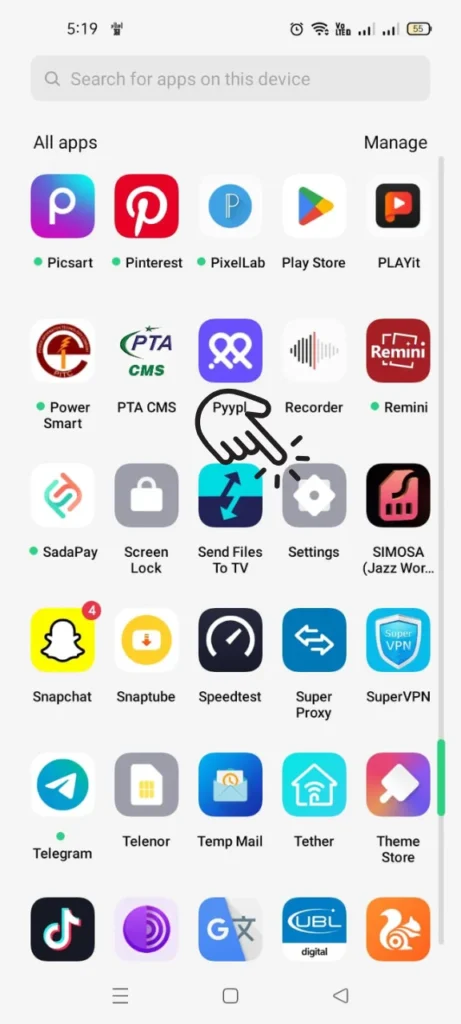
Open the Settings app on your OPPO A54.
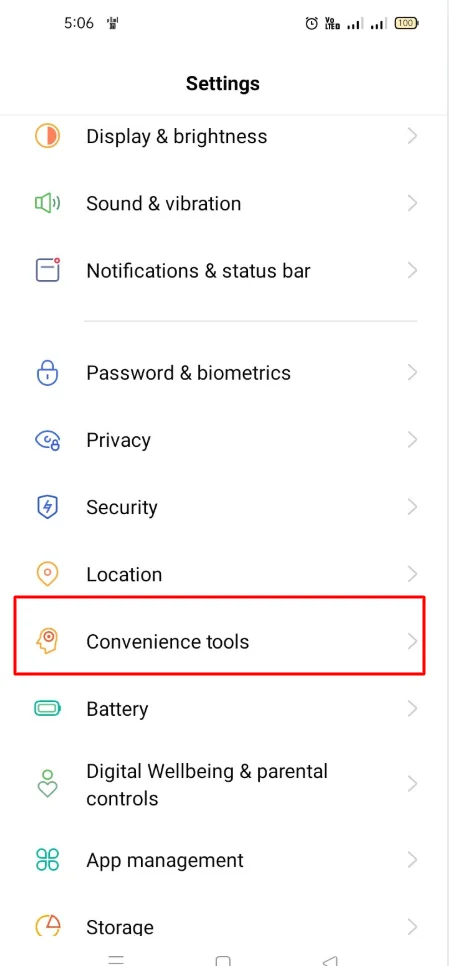
Scroll down and tap Convenience Tools.
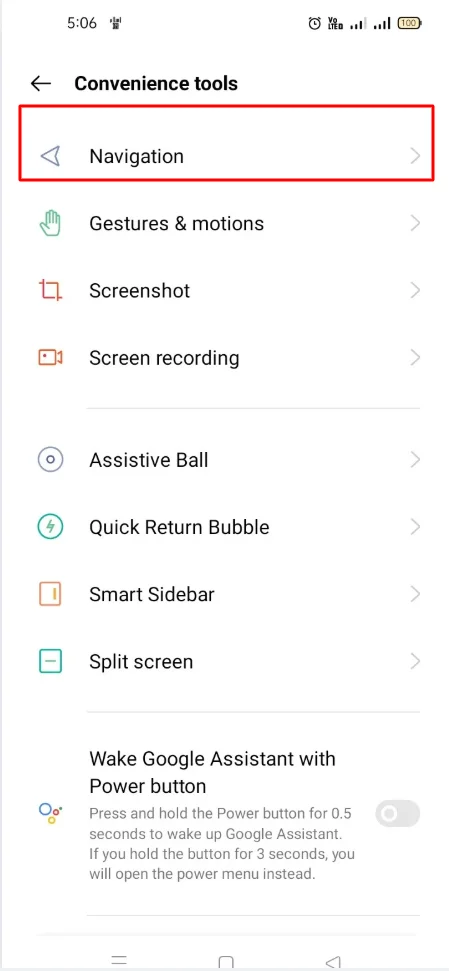
Select Navigation Buttons.
Choose Swipe Gestures from Both Sides (or simply Gesture Navigation).
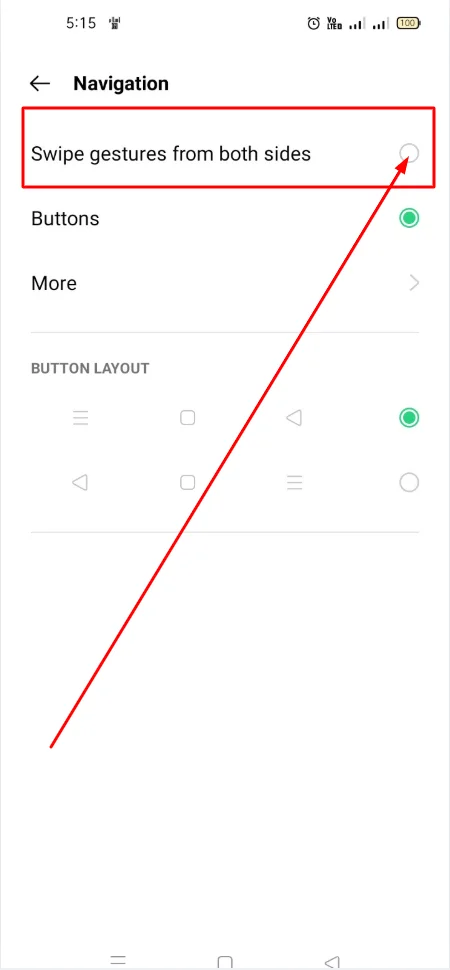
Follow the on-screen tutorial to learn how gestures work.
Your navigation will switch instantly to gesture mode.
So here is the full method how you guys can switch from buttons to full screen gestures and remember this will work on mobiles that have ColorOS versions commonly used in OPPO A54.
Read More: How to Clear Cache on OPPO A54 (Complete Easy Guide)
How to Change Ringtone & Notification Sounds on OPPO A54
Gesture Controls You Can Use on OPPO A54
Here is a simple table that shows how each gesture works:
Gesture Navigation Table
| Gesture | What It Does |
|---|---|
| Swipe up from bottom | Go to Home Screen |
| Swipe up & hold | Open Recent Apps |
| Swipe from left or right edge | Go Back |
| Swipe up from bottom corners | Enable Google Assistant |
This table helps users remember the gestures quickly.
How to Switch Back to Button Navigation
If you don’t want gesture mode anymore, you can return to buttons anytime:
Go to Settings
Tap Convenience Tools
Select Navigation Buttons
Choose the 3-button layout
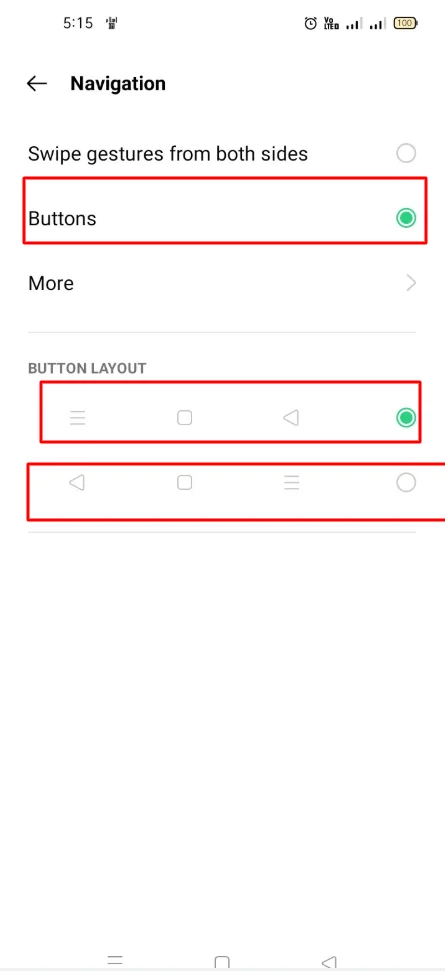
After following all these steps, your old navigation bar will open.
Troubleshooting Tips (If Gestures Don’t Work Properly)
If gesture navigation feels slow or doesn’t respond:
- Make sure your screen protector is properly aligned
- Restart your phone once
- Check for Software Updates in Settings → About Device
- Remove apps that use floating windows
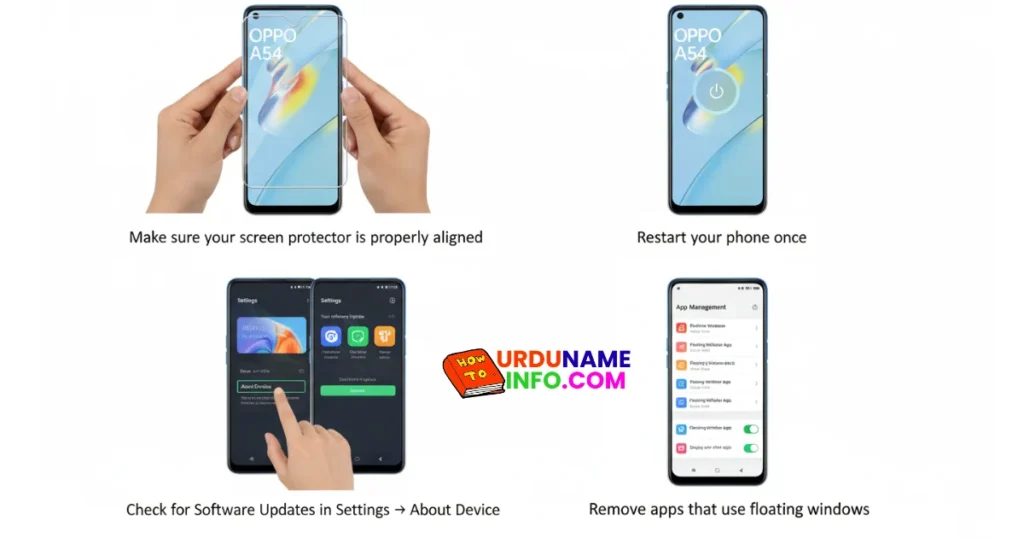
These small fixes usually solve the problem.
Read More: How to Change Keyboard Language on OPPO A54
Conclusion
In this article, I have told you in full detail how you can switch your mobile phone navigation to gesture navigation. So, how to do all these steps, we have shown you how you can do all this by doing it on your mobile phone. The steps are simple, and you can switch back anytime. Whether you want more screen space or smoother control, gesture mode is a useful feature worth trying.

My name is Mujahid Shah. I provide helpful information about mobile phones, laptops, and general technology topics. I write simple and easy guides to help people solve common problems and understand tech in a better way.