
If you are also connecting to Wi-Fi and then disconnecting, mobile data is not working or Bluetooth is not connecting properly, then resetting the network settings can solve this problem. The best part is that by resetting the network settings, your personal data like photos from the app or contacts, phone numbers, etc. will not be deleted, etc., so don’t worry about this.
What Are Network Settings on Android?
Network settings are an important part of your mobile phone. Understand that these settings allow your device to connect to the internet with other phones and wirelessly.
I have told you all these things about network settings below.
- WiFi passwords and networks
- Mobile data settings
- Bluetooth paired devices
- Hotspot settings
- VPN configurations
- APN settings
When you reset these settings, all the above options return to default.
When Should You Reset Network Settings?
If you are experiencing any of the problems I have mentioned below in your mobile phone, you can restore it by resetting the network.
- WiFi not connecting or disconnecting
- Mobile data not working
- Bluetooth pairing issues
- Hotspot not turning on
- Slow internet even with strong signal
- SIM signal keeps dropping
- VPN not working properly
- Websites not loading
Resetting network settings often solves these problems instantly.
Read More: How to Enable Always On Display on OPPO A54 (Step-by-Step Guide)
Things to Know Before Resetting
If you want to reset your network settings, there are a few things you must have in mind.
- Saved WiFi passwords will be removed
- Bluetooth devices will be unpaired
- VPN profiles will be removed
- Mobile data will reset to default settings
- No apps, photos, videos, or files get deleted
This is a completely safe process.
How to Reset Network Settings on Android
Whether your mobile phone is Oppo A94 or any other Android phone, how can you easily reset the network? This entire method has been explained step by step, by following it you can reset your network.
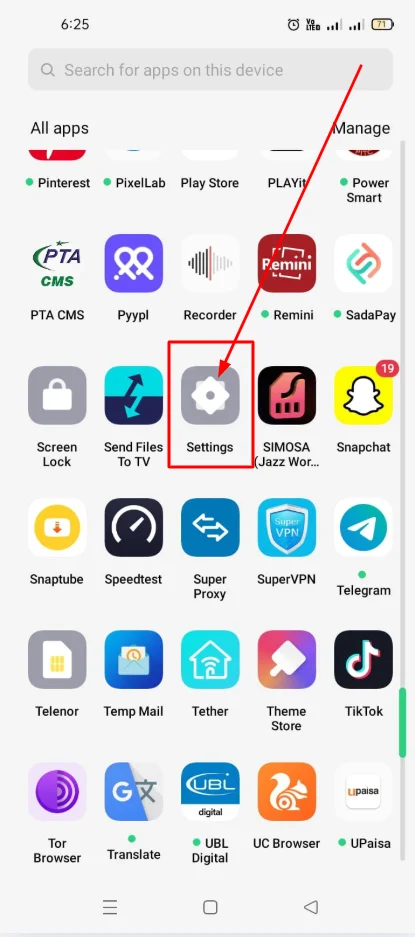
Step 1: Open the Settings app
You first have to open the settings of your mobile phone.
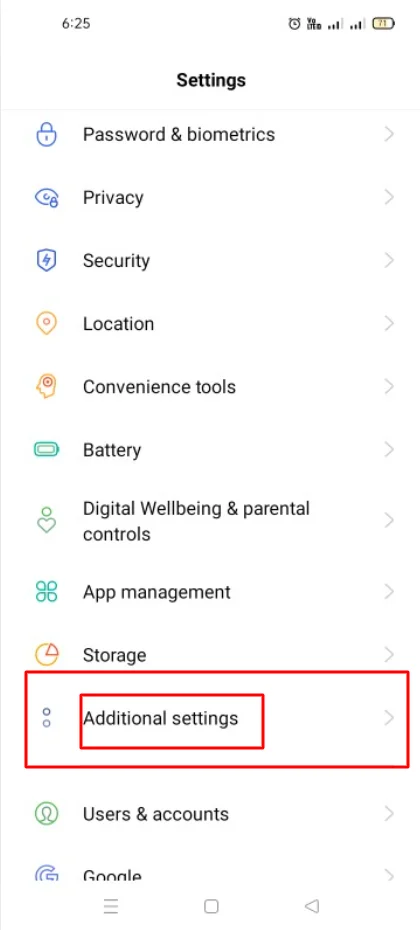
Step 2: Scroll down and tap System or Additional Settings
You have to scroll down on your mobile phone and click on the Additional Settings.
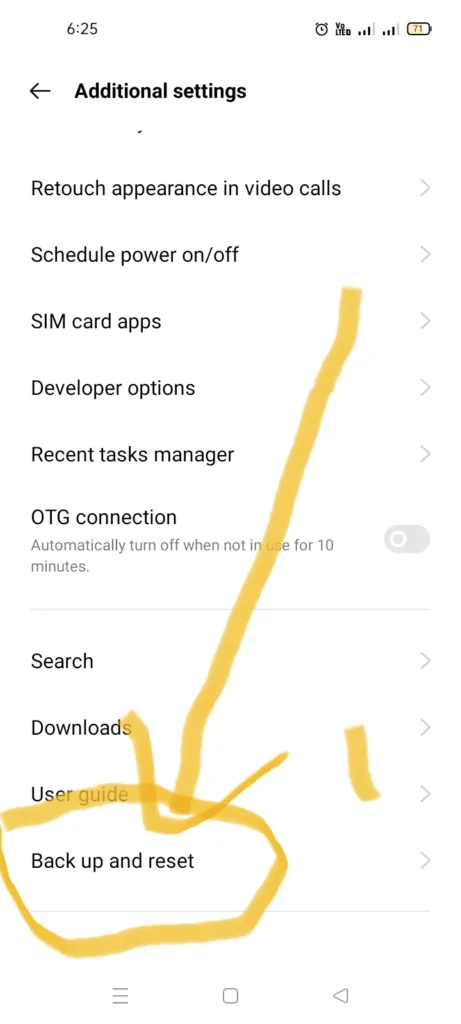
Step 3: Tap on Backup & Reset
After that you have to click on the Tap on Backup & Reset.
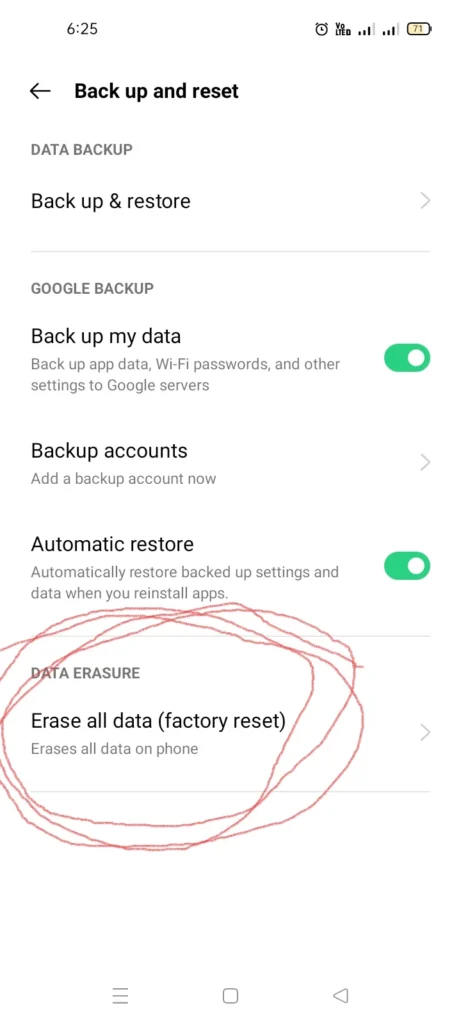
Step 4: Select Erase all data (factory reset)
After that you have to click on Erase all data (factory reset).
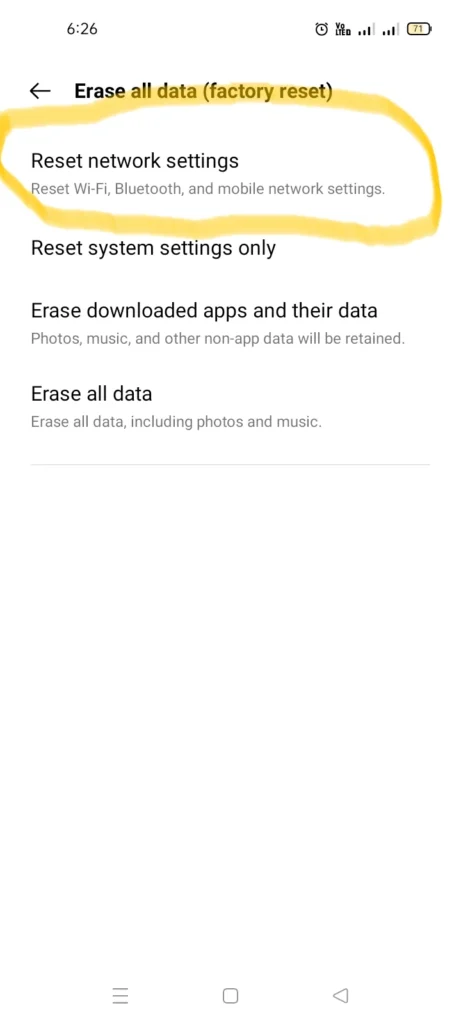
Step 5: Select Reset Network Settings
After that you have to select the Reset Network Settings.
Step 6: Confirm your choice and tap Reset
After clicking on Reset Network Settings, it will ask you for your mobile phone password. When you provide it, your settings will be reset.
Related Article:
- How to Clear Cache on OPPO A54 (Complete Easy Guide)
- How to Speed Up OPPO A54 Without Reset
- How to Block Unknown Numbers on OPPO A54
What Happens After Resetting Network Settings?
What do you need to do after you reset your network settings?
- WiFi will turn off automatically
- You will need to reconnect to WiFi networks
- Bluetooth devices must be paired again
- VPN apps need to be set up again
- Mobile data and SIM settings will refresh
- Network performance usually becomes smoother and faster
This reset often fixes long standing connectivity issues.
Alternative Fixes You Can Try Before Resetting
If you don’t want to reset your mobile phone and you want all these problems to be resolved immediately, then follow the steps below.
- Restart your smartphone
- Enable and disable Airplane Mode
- Turn WiFi OFF and ON
- Forget the WiFi network and reconnect
- Update your phone’s software
- Clear the cache of the WiFi or system apps
- Check your SIM card placement
If none of these work, then resetting network settings is the best solution.
Conclusion
In this article, I have told you in full detail how you can reset your network and what happens if your Android phone is not connecting to Wi-Fi, mobile data, Bluetooth hotspot, etc., then you can fix it now. And it will take you a few seconds to do all this. You can do it very easily. I hope you guys liked this article very much.

My name is Mujahid Shah. I provide helpful information about mobile phones, laptops, and general technology topics. I write simple and easy guides to help people solve common problems and understand tech in a better way.