
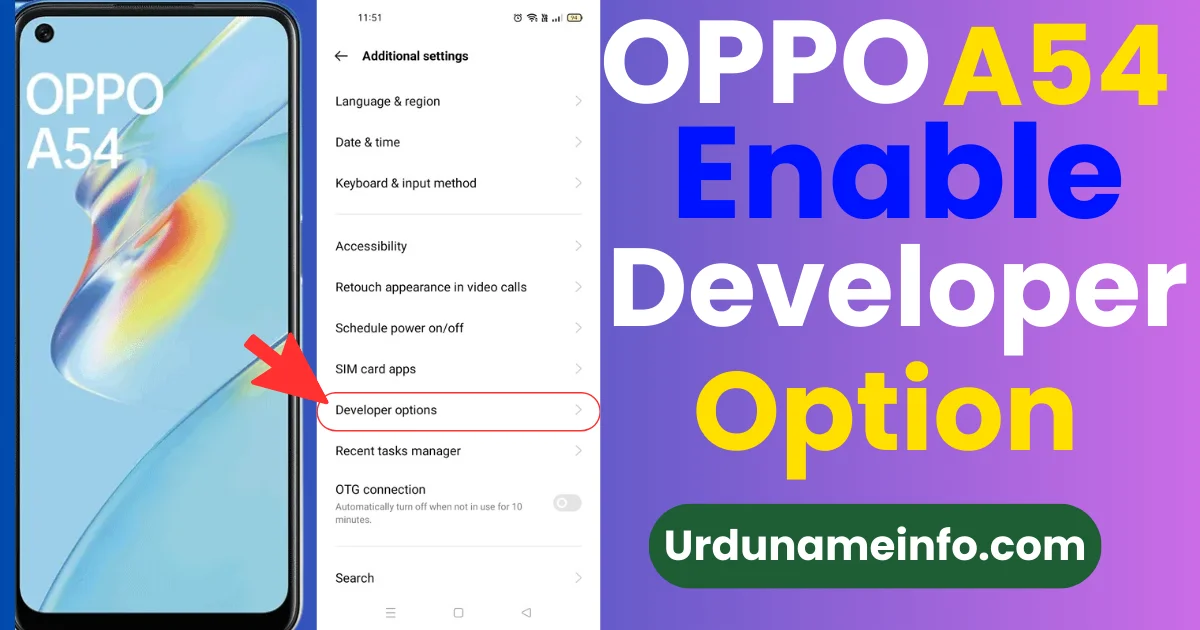
If you want to unlock advanced features in your OPPO A54, you need to enable Developer Options. These hidden settings allow you to turn on USB debugging, speed up animations, test apps, and access more technical tools. This is a developer action that is hidden to protect beginners, but you can easily enable it in a few steps. In this article, I will tell you full information on how you can enable developer options in Oppo A54 mobile.
What Are Developer Options on OPPO A54?
This is Developer Options, which is a special menu inside your mobile phone, which contains tools designed for app developers and power users. These are very helpful. I have given you some more details below, see them too.
With these settings, you can:
- Turn on USB Debugging
- Improve phone speed by reducing animations
- View running services
- Enable OEM unlocking
- Test apps and system features
These options are completely safe unless you change the settings. You should not perform any actions that you do not understand.
How to Enable Developer Options in OPPO A54
These are some simple steps that can help you enable developer actions easily.
Step 1: Open “Settings”
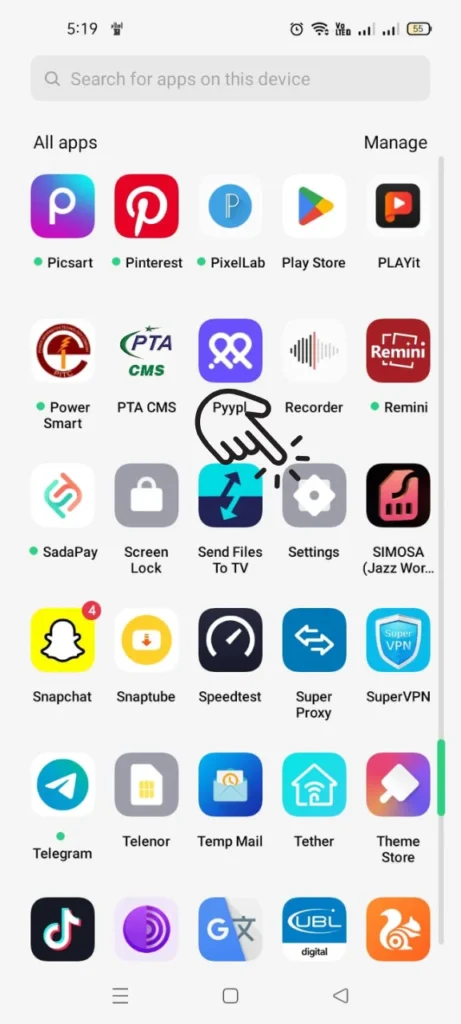
First of all, you have to unlock your mobile phone and then click on the Settings icon.
Step 2: Scroll Down and Tap “About Phone”
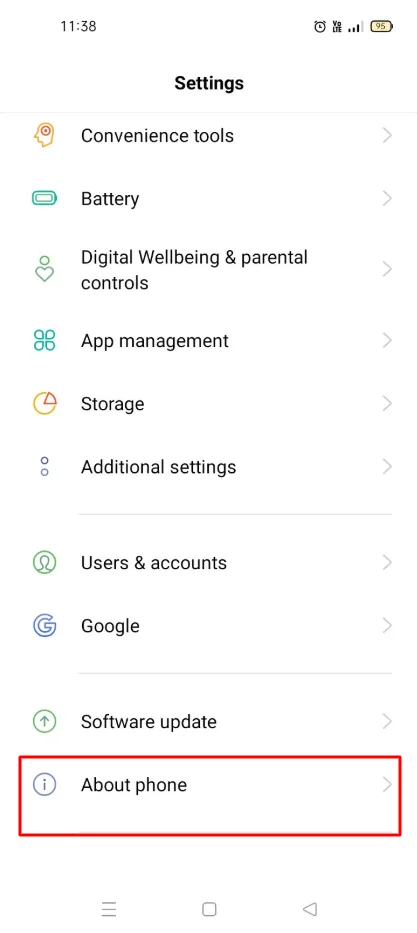
In the settings button, you have to scroll down, find About Phone, and then click on it.
Step 3: Tap “Version” or “Build Number” 7 Times
These are the two things you need to look for in About Phone. One of them will be in every mobile.
Version
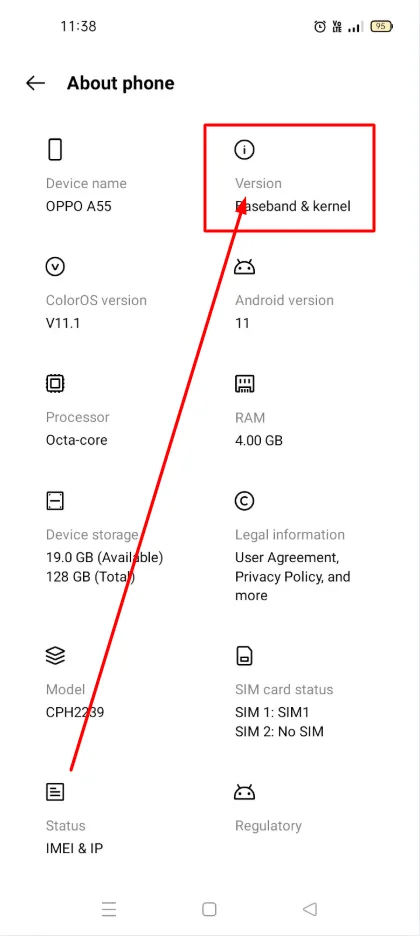
Build number
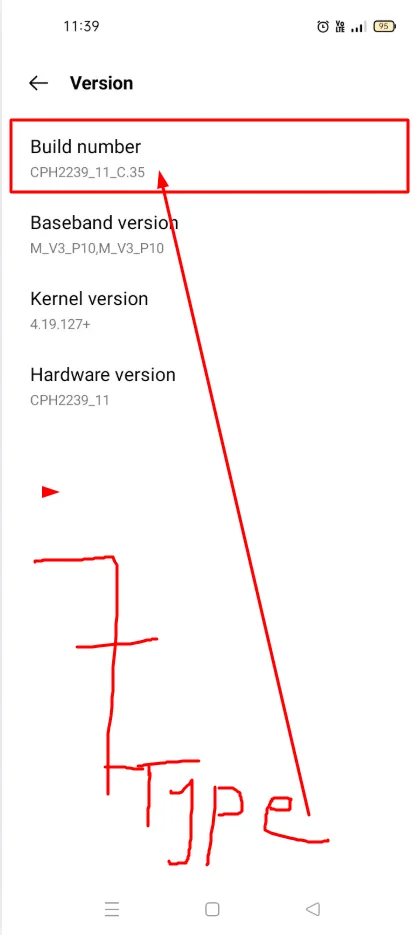
If you have any of these in your mobile, you have to click on it 7 times at once.
This method will enable developer options.
Step 4: Enter Your Lock Screen Password (If Required)
If your phone asks for your screen lock pattern or password, enter it.
Step 5: Developer Options Successfully Enabled
Once done, you’ll see a message saying:
“You are now a developer!”
This means Developer Options are now enabled.
Read More: How to Improve Battery Life on OPPO A54
How to Access Developer Options in OPPO A54
Now after enabling the developer option, how to open it is explained step by step below.
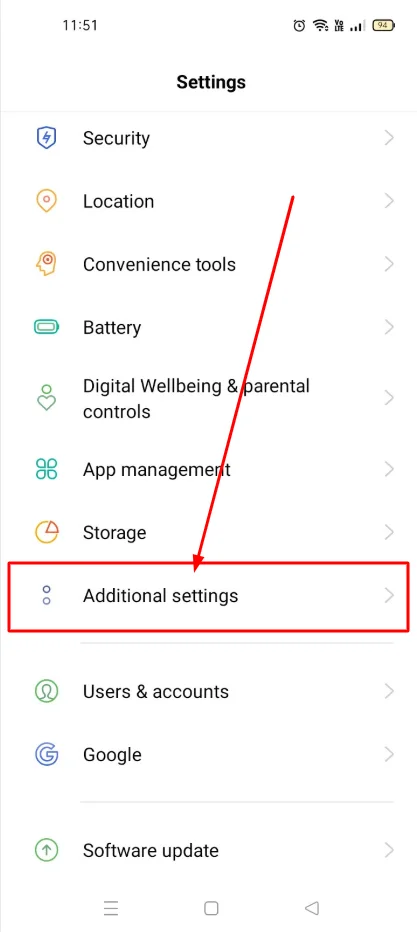
Go back to Settings
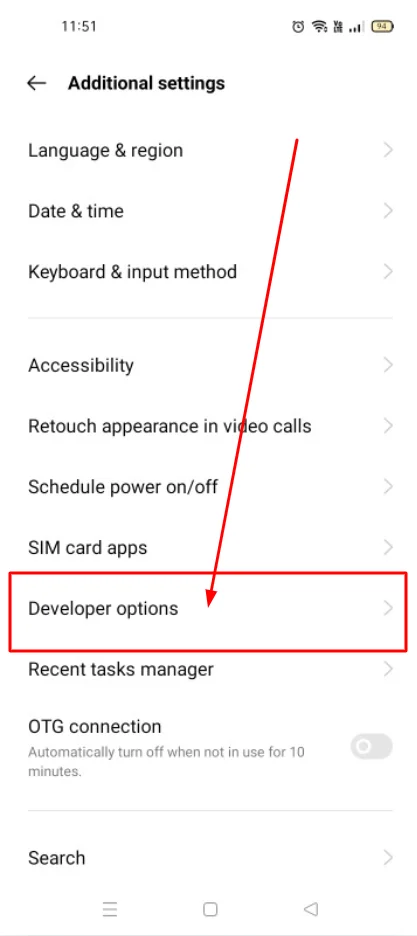
Scroll down and tap Additional Settings
Find and tap Developer Options
This menu will now be visible permanently.
Useful Developer Options You Can Use
Here are some safe and helpful settings inside Developer Options:
1. USB Debugging
Required for:
- Connecting your phone to a PC
- Running ADB commands
- Using phone management tools
2. Animation Scale Settings
You can reduce animation speed to make your phone feel faster:
- Window animation scale
- Transition animation scale
- Animator duration scale
Set them to 0.5x for smoother performance.
3. Stay Awake
Keeps your screen on while charging. Useful during testing
4. Running Services
Check which apps are using your RAM.
5. OEM Unlocking
Only enable if you want to unlock the bootloader (not recommended for normal users).
How to Disable Developer Options
If you want to disable developer actions, follow the steps below.
Go to Settings → Additional Settings → Developer Options
Turn off the toggle at the top
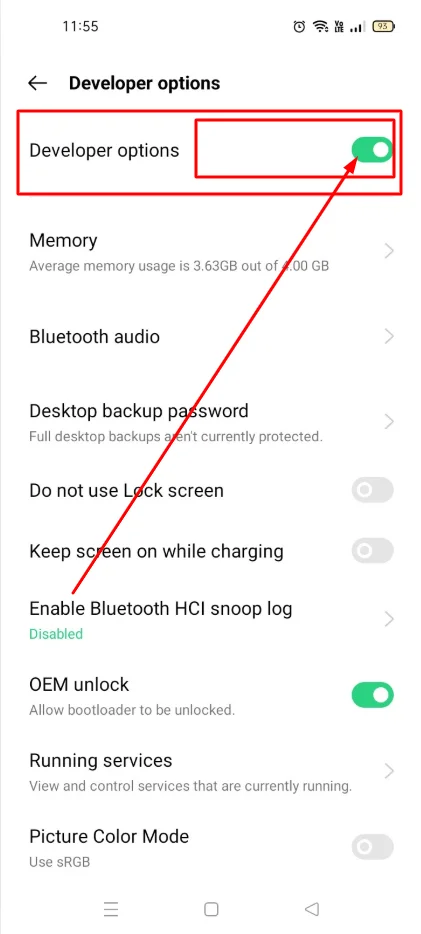
Now your Developer Options on the devil has been disabled.
Conclusion
That’s it! You have successfully learned how to enable Developer Options on OPPO A54. This feature is very important in every mobile, so I have told you in full detail step by step with demo image how you guys can use it. I hope you guys like this article. These settings open the door to advanced features like USB debugging, faster animations, and system tools. Use them carefully, and only change settings you understand.

My name is Mujahid Shah. I provide helpful information about mobile phones, laptops, and general technology topics. I write simple and easy guides to help people solve common problems and understand tech in a better way.