
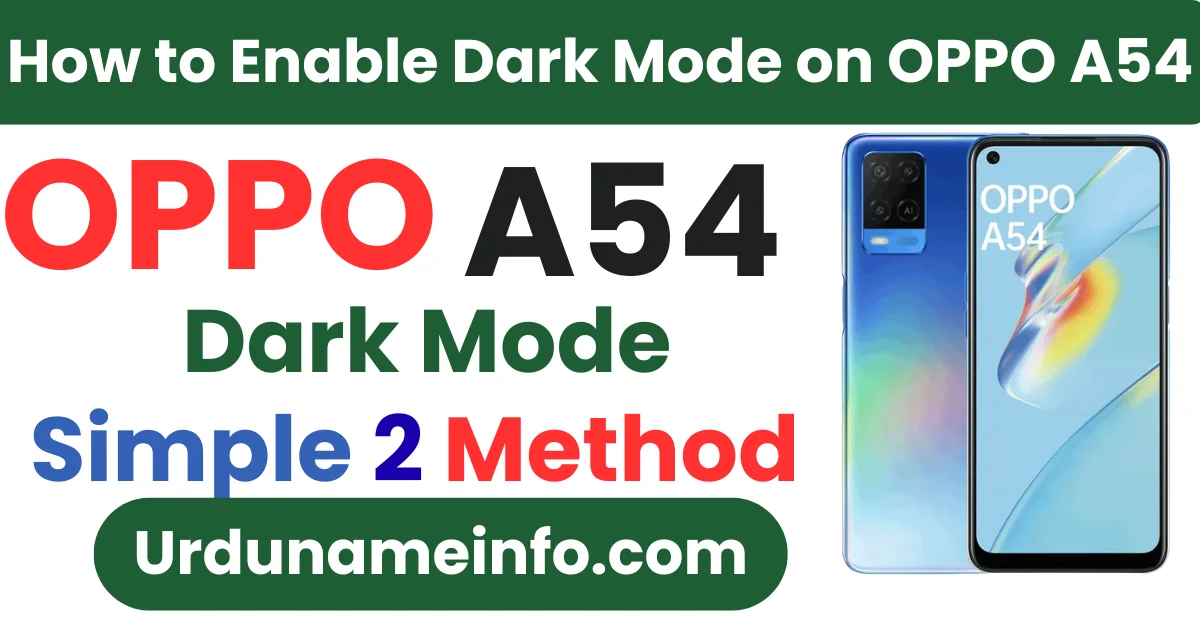
Do you know that the dark mode of the mobile is a very important feature. It not only gives your mobile phone a stylish and modern look but also protects your eyes. Especially at night, when you use your mobile phone, all the light from the mobile hits your eyes and your eyes can also get damaged. If you are using the Oppo A54 mobile phone, then in today’s article I will tell you in full detail how you can enable the dark mode of your mobile phone.
What Is Dark Mode?
This is the mobile dark mode option, which changes the background of your mobile phone from light to dark.
- Reducing eye strain
- Saving battery life
- Making the screen comfortable at night
- Giving your phone a clean, premium look
OPPO A54 supports Dark Mode officially, and you can enable it in just a few steps
How to Enable Dark Mode on OPPO A54 (Step-by-Step Guide)
Below I have told you step by step information on how you can enable dark mode on your mobile.
Method 1: Using Quick Settings
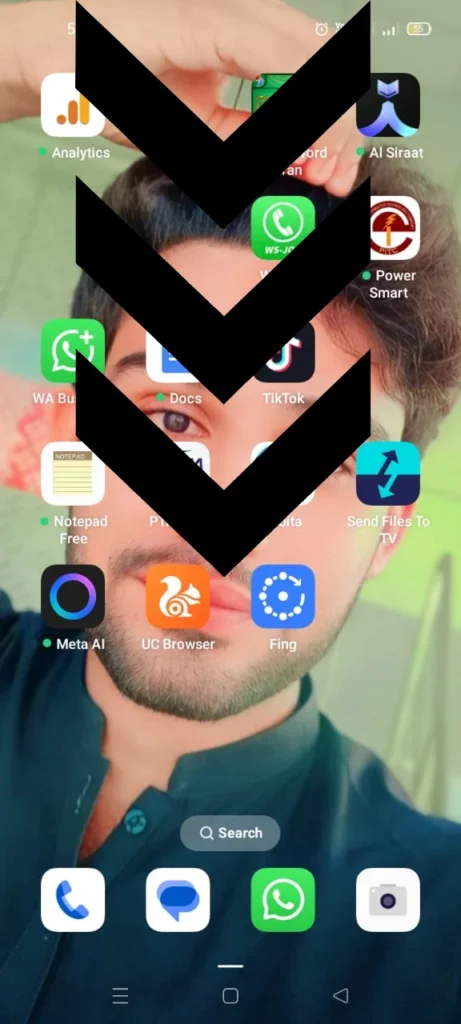
Swipe down from the top of your screen.
Look for the Dark Mode icon.
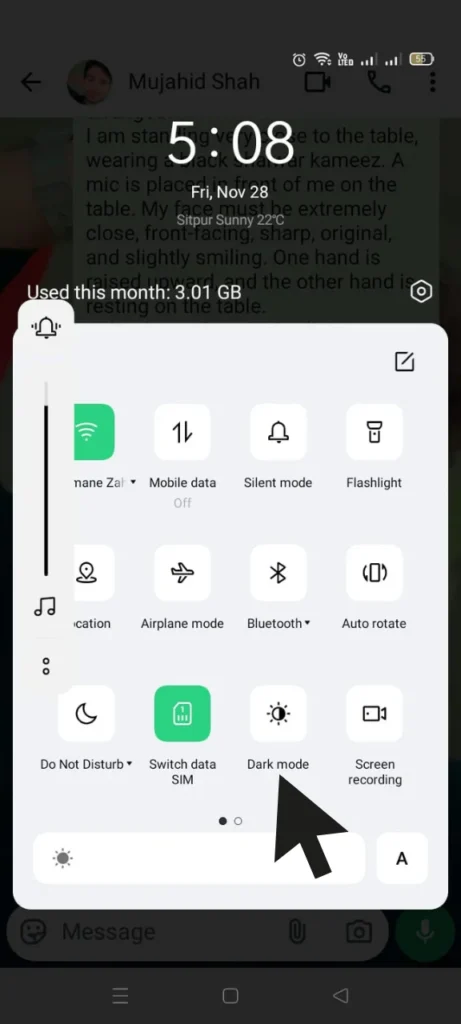
Tap on it.
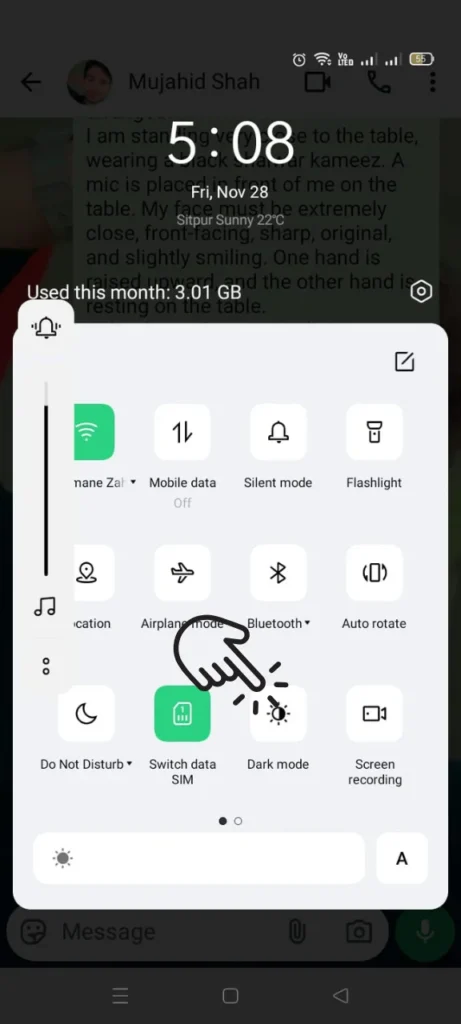
Now your mobile dark mode is turned on, you can turn it on or off from here.
If you don’t see the icon, simply move to Method 2.
Read More: How to Enable Always On Display on OPPO A54 (Step-by-Step Guide)
Method 2: Using Settings
If the first method doesn’t work for you, we’ll tell you another method by which you can enable dark mode.
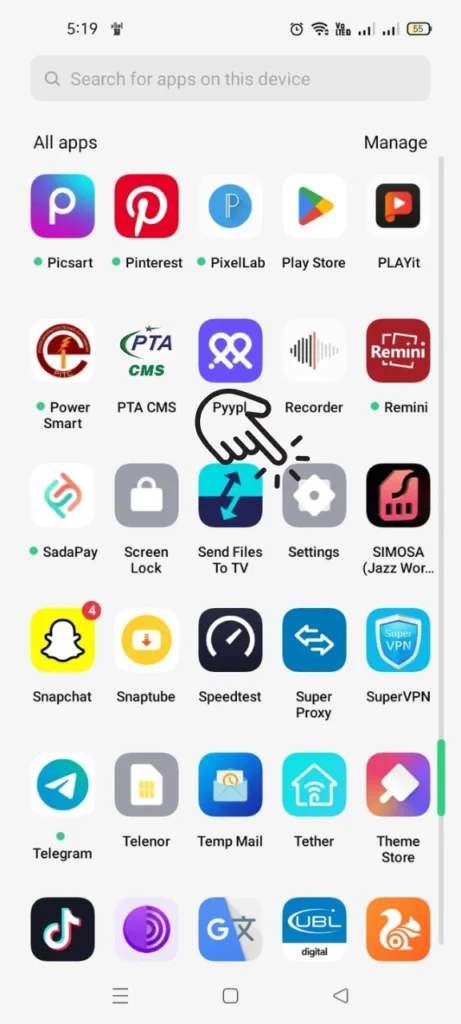
Open the Settings app.
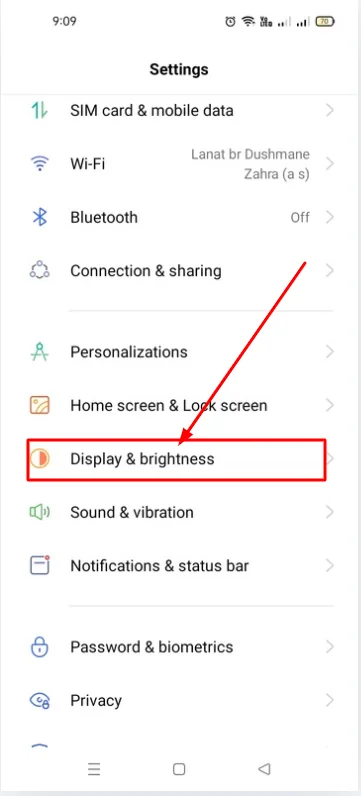
Tap Display & Brightness.
Select Dark Mode.
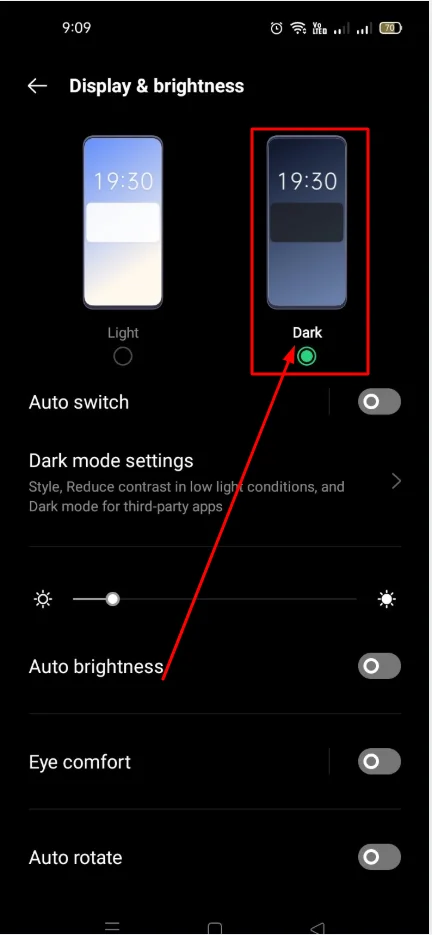
Turn the toggle ON.
So here is the second method by which you can enable dark mode on your mobile.
How to Customize Dark Mode Settings
OPPO provides additional customization options:
- Dark Mode Intensity (Gentle, Medium, Enhanced)
- Dark Mode for Third-party Apps (force dark mode if available)
- Wallpaper Dimming (automatically darkens wallpapers
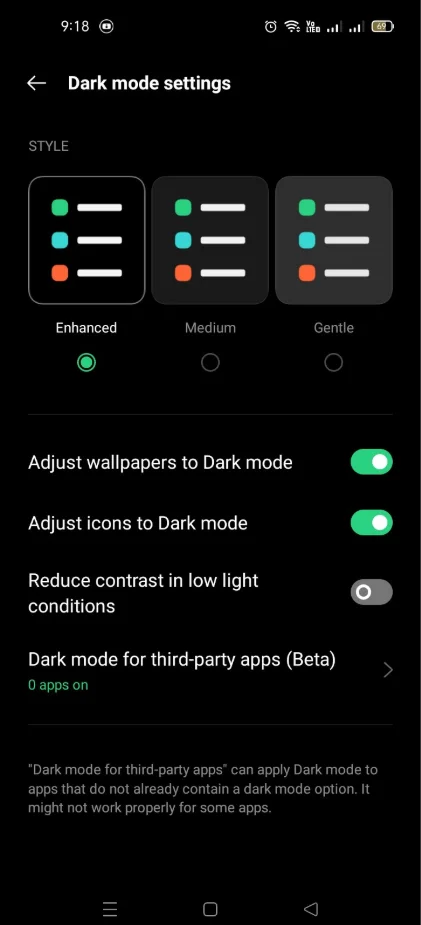
This is an extra method that allows you to adjust dark mode.
How to Disable Dark Mode
Now let’s talk about how you can disable dark mode.
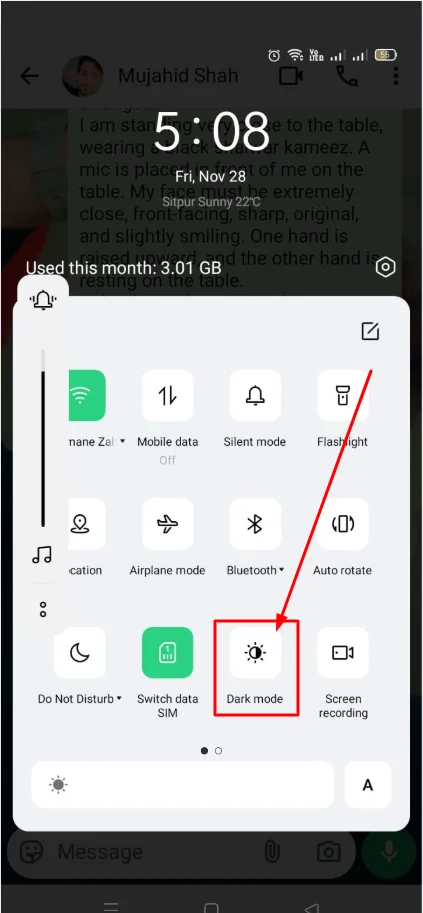
And in the other methods that were mentioned, you can also disable dark mode in this way.
Go to Settings > Display & Brightness > Dark Mode
- Turn it OFF
- OR
Swipe down the notification bar and tap the Dark Mode icon again.
Dark Mode Not Working on OPPO A54
If you are having a problem with dark mode not turning on, then below I have told you the steps on how to solve it.
- Update your phone to the latest ColorOS version
- Restart your phone
- Switch to the default OPPO theme
- Reset display settings
- Turn off “Power Saving Mode” if it conflicts
These fixes solve most problems.
Conclusion
Enabling Dark Mode on OPPO A54 is simple and takes only a few seconds. I have explained to you in simple language how you can turn off dark mode. I have also explained it in the image along with the image and I have also told you in writing. I hope you liked it and found this article informative.

My name is Mujahid Shah. I provide helpful information about mobile phones, laptops, and general technology topics. I write simple and easy guides to help people solve common problems and understand tech in a better way.